Documents / Creating Documents in MAGIQ Documents
All corporate documents including emails (sent and received) produced by an organisation qualify as a record need to be saved into MAGIQ Documents.
This responsibility lies with the person who has generated the document or received the email.
Documents that come into an organization via the post would usually be saved into MAGIQ Documents by nominated records staff.
There are several different ways to create documents in MAGIQ Documents:
-
Office Connectors include the email, word and excel connectors.
-
Document Workbench is a web-based module which is used to register existing emails and documents. This includes integration with Google.
-
EasyForms create an html document based on a template, for example service requests
-
Upload an existing document into an MAGIQ Documents.
In addition to registering emails and documents produced by MS Office products, documents, videos, photos, sound files etc in any format can also be registered into MAGIQ Documents.
The document workbench is our preferred method of uploading existing documents into MAGIQ Documents.
-
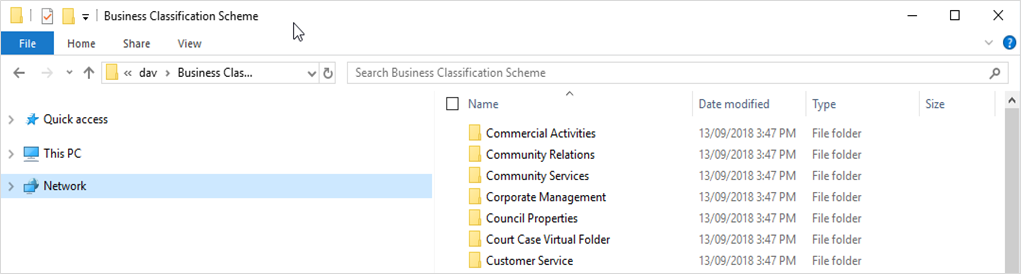
Use WebDAV to save a document directly into MAGIQ Documents.
To save a document into MAGIQ Documents, drag and drop any document into an appropriate MAGIQ Documents Folder.
Alternatively, A network drive mapping can be created via windows explorer, please refer to your I.T. Department for more information.
After creating a network location, a window much the same as the one shown will appear. Using standard windows functions documents can be opened, copied and pasted from here.
Note
Using this method does not give you the opportunity to add Meta Data, i.e. Document Type, when saving your document.
Meta Data must be added from within MAGIQ Documents after the document has been saved. Where a Library requires a Document Type to be set - the document will save as Generic 'Unpublished' and will only be accessible by the document owner until both the Document Type and Publishing Rules are changed via the document Properties Screen
-
Use Zip Upload to upload multiple documents at once. This option registers the contents of the zip file.
-
Use an HTML Form Template creates a document based on a template, for example service request.
-
Use the "E-mail Registration Tool" to upload EML format emails.
Register emails into MAGIQ Documents which will have the extension of .eml
MAGIQ Documents uses the Outlook Connector or Document Workbench to register emails.
-
Use the built-in HTML Editor to create rich HTML documents directly into the relevant library. Ideal for folder notes.
-
Use the Import-Export Tool to upload and download mass amounts of documents from MAGIQ Documents directly from their desktops.
-
Use the Hot Folders Utility to automatically import documents to a specified folder.
Security considerations:
In order to be able to create documents, you must be logged in and (Anonymous users may not create documents) you must have at least "ADD" rights in the folder in which you wish to create a document.
An important thing to remember is that the new document (by default) will inherit the security permissions from the folder in which it is created. So if you would like to change or assign a different security permissions, you must go to the security screen in the properties window.
For more on this topic refer to Document Security