Publishing Portal / Administration / Manage Users
A user administrator can create users, force password resets, enable or disable users, add or remove user roles and assign or remove a user from an organisation.
Creating Users
- Click
 .
. - Enter a Username, Email Adrres, First Name, and Lastname.
An email address is required, because an email will be sent to the user advising of there password.
Note
A user cannot have the same email address as another.
- Click Ok.
- Once created, you will be returned to the User Management page and the user will receive an email advising of their password.
Selecting the username will display the following information:
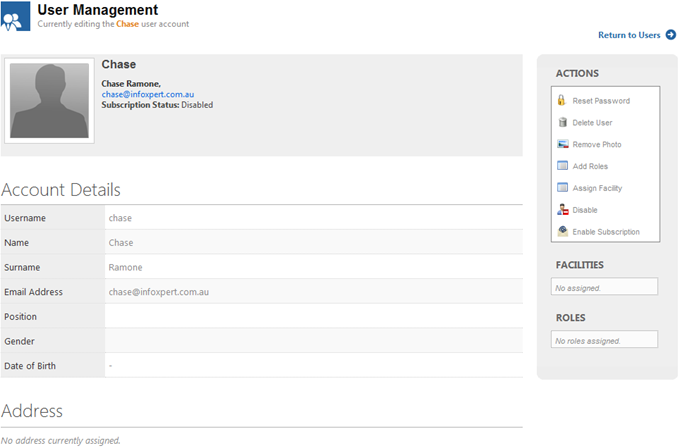
Actions
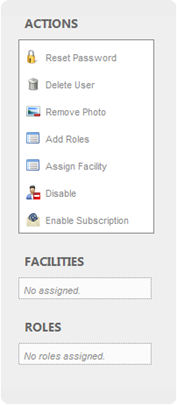
Reset Password – System Administrator can reset the password if the user has forgotten it.
Delete User – System Administriator can remove the user if they no longer use the system.
Remove Photo – System Administrator can remove the photo if found offensive or not required.
Add Roles – Apply the roles of Admin, Category Admin or Organisation Admin. For further information about these roles, refer to the My Roles section of this guide. If, roles have been defined for the user, they will display below the actions menu.
Assign Facility - Select which facility the user belongs to. If, facilities have been defined for the user, they will display below the actions menu.
Disable – If the user wont be using the system for a period of time, they can be disabled.
Enable Subscriptions – A user can enable subscriptions if they decide they wish to be notified of any new documents etc.
Note
The system Administrator is unable to change the users Account Details and Address information
Deleting Users
There are two ways a user can be deleted:
- Tick the box next to the user name that you wish to delete and click
 .
.
Or
- Click
 (Delete) next to the user name.