Administrative Functions / System Recycle Bin
Note
The System Recycle Bin is not the Sysadmin Recycle Bin. The Sysadmin user has their own personal recycle bin - available on the Personal Dashboard (login name)
Access all recycle bins system wide.
The System Recycle Bin is the final location for all deleted documents and folders in MAGIQ Documents.
Once a document or folder has been purged (deleted) from the System Recycle Bin, all information is permanently deleted, and that document or folder is no longer recoverable.
When a user deletes a document or folder it goes into their own personal Recycle Bin. All users can restore items from their own recycle bins and purge (empty) their own recycle bins. When users purge their recycle bins, those documents and folders appear in the system recycle bin.
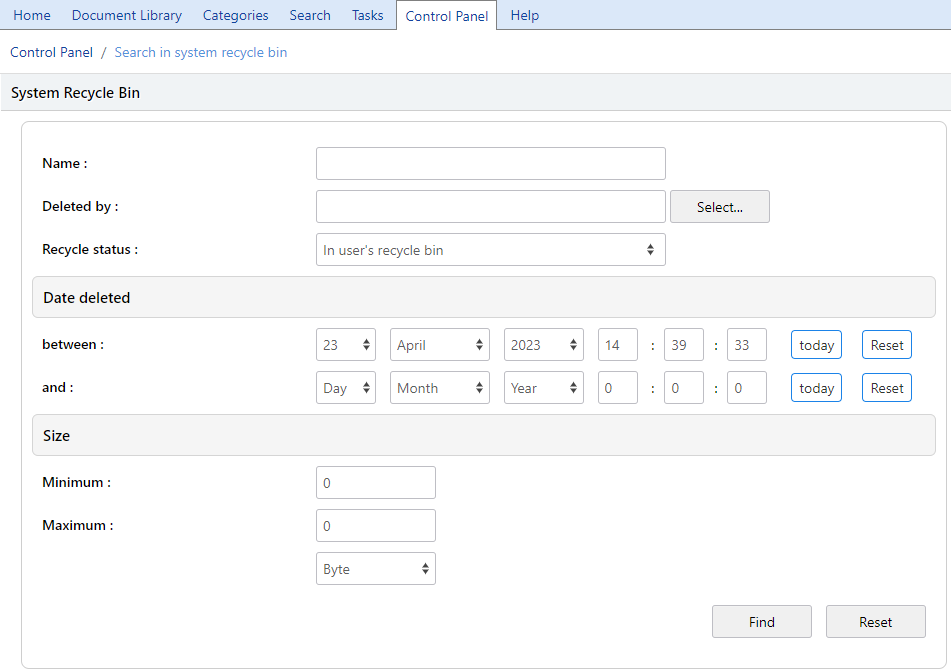
Deleted documents or folders can be in both the Users and System recycle bins.
Name
If known, specify the name of the folder or document.
Deleted by
If known, Click select to specify who may have deleted the folder or document.
Recycle Status
Leaving this blank will list items in both the System and Users recycle bins. In user's recycle bin = will only show items that are in the users recycle bin In system recycle bin = will only show items that are only in the System recycle bin.
Date Deleted
If known, select a date range of when the folder or document was deleted.
The results will show, the Name of the document or folder, the Original location, Date Deleted, who deleted the item and the Recycle status - either 'in User's recycle bin' or 'in system recycle bin'. Date Emptied is only shown for items in the system recycle bin.
Size
Search for deleted documents in size by either bytes, kilobytes (KB), or megabytes (MB).
Restoring Deleted Documents
Any document that has been deleted from MAGIQ Documents, by any user, can be restored by the system administrator.
When users delete a document or folder belonging to another user (something they can only do if they have "Full Control" over the document or folder) the deleted items will go into the Recycle Bin of the user who deleted the document.
If the user who owns the document wishes to restore the document, the System Administrator must step in.
To do this, perform the following:
Note
Restoring multiple documents to their original locations can only be done by the user from their own recycle bin - available on their Personal Dashboard (login name).
- Navigate to the MAGIQ Documents Control Panel
- Click System Recycle Bin
- Specify search criteria relevant to your search.
- Click Find to execute your search.
- Select the document or folder from the search results. If multiple items have been selected, they will all be restored to the selected folder.
- Click Restore
Purging/deleting Recycle Bin entries
In order to re-claim valuable disk space, the Recycle Bin has to be cleaned up periodically.
Note
Items found in the Users recycle bin will be permanently deleted - they will NOT be available in the System recycle bin after being Purged.
Users should be encouraged to empty (Purge) their own recycle bins on a regular basis.
- Navigate to the MAGIQ Documents Control Panel
- Click System Recycle Bin
- Specify a date in the "Date Deleted" section. Note: Every document deleted between the two dates will be returned
- Check all the documents and folders you wish to Purge.
- Click Purge from the left side menu
- A warning message will display asking if you are sure and advising that you will lose all recovery information for the selected items - select OK and the selected items are deleted from MAGIQ Documents.
To purge the system recycle bin
To purge only the system recycle bin
- select Recycle Status 'in system recycle bin'
- specify the required date range. Document name and or deleted by can also be specified if required.
- Check all the documents and folders you wish to Purge.
- Click Purge from the left side menu
- Selected items will be permanently deleted from MAGIQ Documents.
to purge users recycle bins - only
Note
Selected items will be permanently deleted - they WILL NOT be available in the System recycle bin after being Purged.
To purge only the users recycle bin
- select Recycle Status 'user's recycle bin'.
- specify the required date range. Document name and or deleted by can also be specified if required.
- Check all the documents and folders you wish to Purge.
- Click Purge from the left side menu.
- Selected items will be permanently deleted from MAGIQ Documents.
Re-claiming disk space by Purging Recycle Bins
In order to reclaim disk space, the recycle bins, both Users and System, can be purged periodically. Selected items will be permanently deleted from MAGIQ Documents.
Automatic purging of the system recycle bin:
The system recycle bin is automatically purged by MAGIQ Documents at defined time intervals. This has been implemented to prevent the system recycle bin from getting overly bloated. To control this time interval, perform the following:
- Navigate to the MAGIQ Documents Control Panel.
- Click General Application Settings.
- Scroll down to the section labeled "System Recycle Bin Settings".
- Check or un-check the check box that allows the automatic purging of the system recycle bin.
- If checked, specify time period in which documents can stay in the system recycle bin.
- The selected documents will be permanently purged from MAGIQ Documents.
For more information on automatic purging, refer to General Application Settings