Auto Reply / Setup
The setup of the auto reply generator is controlled via the Foundation Manager.
The actual templates themselves are saved within the MAGIQ Documents library under \Form Templates\Auto-Reply Templates.
Or, you can utilise the same templates which are used for the Office Connectors.
To access Foundation Manager
-
Select Foundation Manager from the sysadmin portal.
-
Click Control Panel.
- Click Settings > General.
-
Scroll down to Office Version.
Specify what extension the response letter will be saved as, by default it is set to office, which saves it at as .doc, by changing to a particular office version it will save as .docx
-
Click Save.
-
Click Settings > MAGIQ
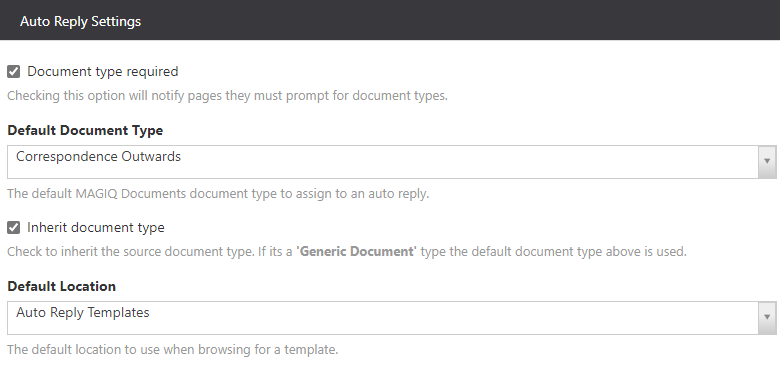
Document Type Required Checking this option will make sure a document type is specified.
Default Document Type Specify the default document type. This can be changed at time of letter creation.
Inherit Document Type Ticking this allows the source document type to be inherited.
Default Location Document Library where templates reside. This is configured in the next step.
-
Click Save.
-
Click Office Templates.
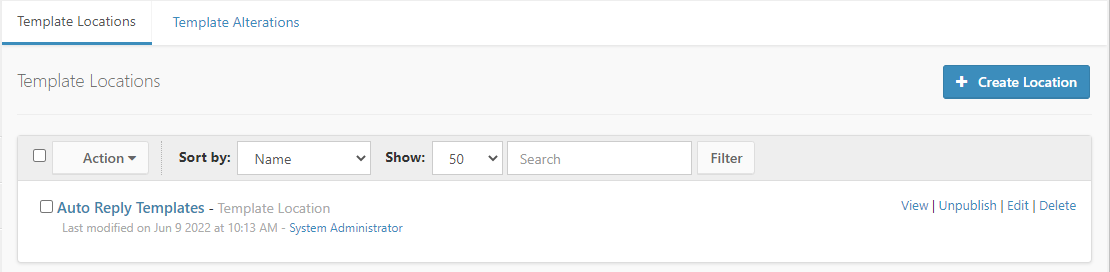
By default, the Template Locations are displayed.
-
Click Edit to the right of 'Auto Reply Templates'.
Selecting the template location, ie Auto Reply Templates allows changes to occur where the templates reside.
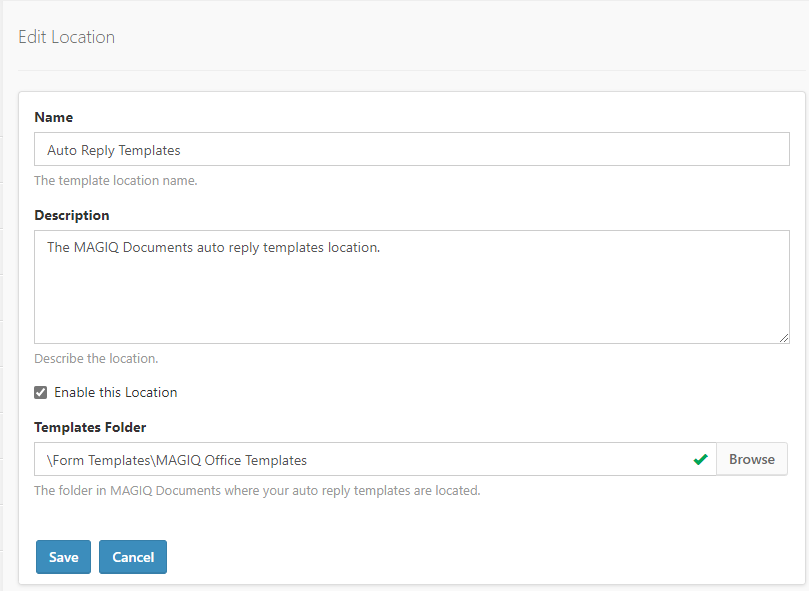
Name Name of the Template Location.
Description Describes the location.
Enable this location Where the auto reply templates are location.
Include Published Only Tick to only include published templates.
Templates Folder MAGIQ Documents folder where templates are located.
-
Click Save.
To Create Bookmarks
- Ensure you are back at the Office Templates screen.
-
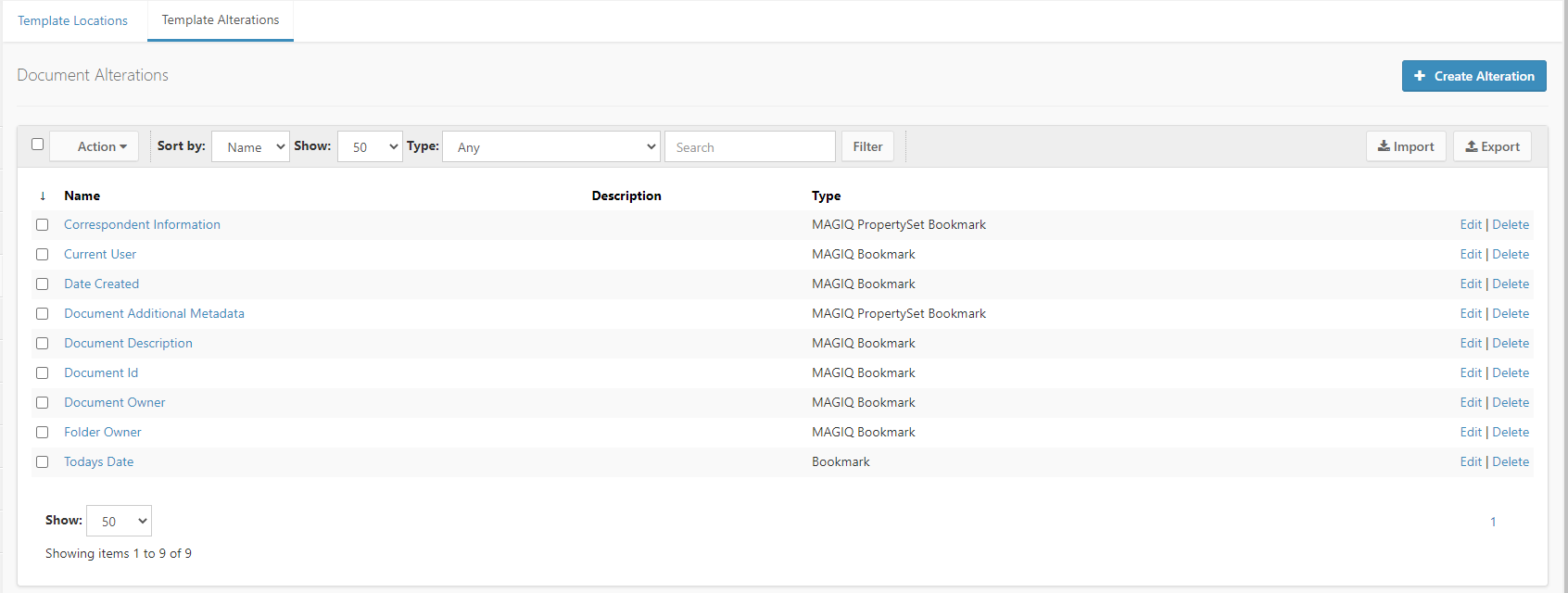
Click Template Alterations.
-
Click
 .
.
-
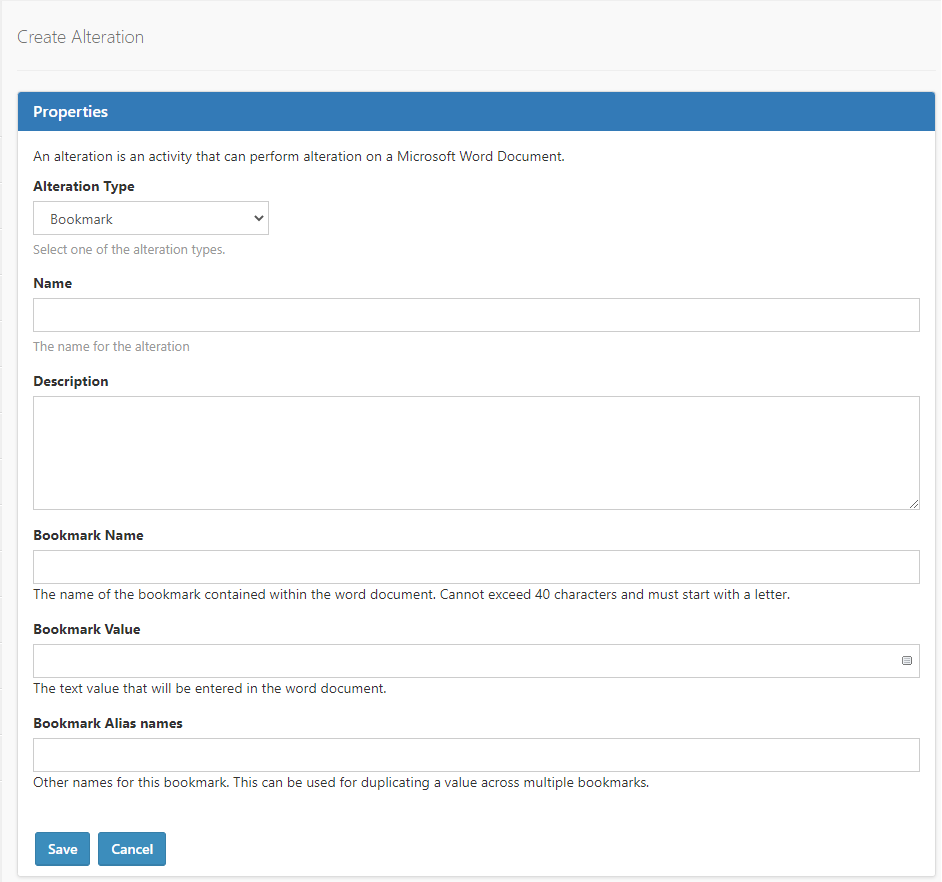
Choose the relevant Alteration Type: Bookmark Create a bookmark based on dates, https request and text string tokens. MAGIQ Bookmark Create a bookmark based on certain document, folder or user’s property information. Or, MAGIQ PropertySet Bookmark Create a bookmark based on a specific custom property set.
-
From the Name field enter a meaningful name. This name displays when first accessing the Template Alterations screen.
-
In the Description field describe what the bookmark "category" is. This is displayed on the Template Alterations screen.
-
Enter a Bookmark Name, this is the name used on your word templates.
-
Select/Enter a Bookmark Value by clicking
 to list different bookmarks that can be chosen.
 -
Enter Bookmark Alias Names / other names for this bookmark, which are used for applying multiple/duplicate bookmarks through the document.
-
Choose a Property Set Name. This Only displays if 'PropertySet Bookmark' is selected in 'Alteration Type'. Choose relevant custom property set.
To Maintain Bookmarks
- Ensure you are back at the Office Templates screen.
- Click Template Alterations.
-
Click the name or choose edit to the right of the bookmark name.
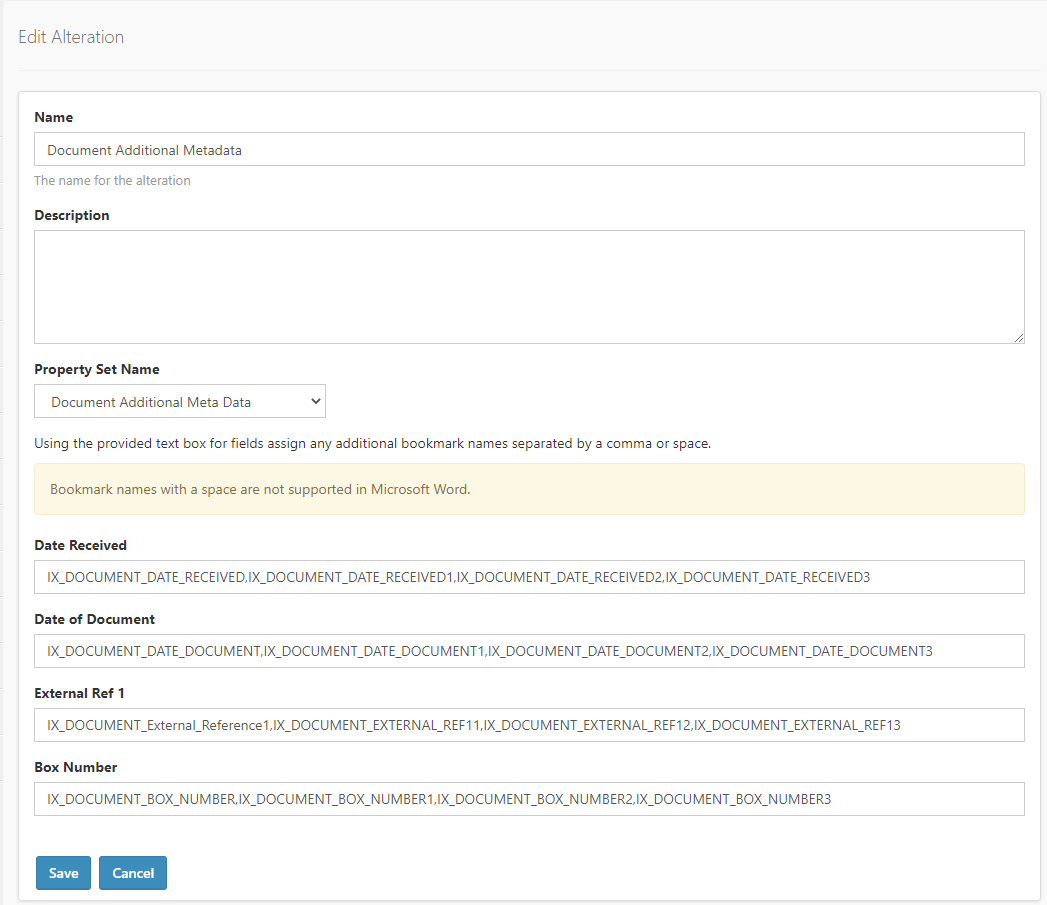
Each bookmark name is seperated by a comma.
-
Make the relevant changes.
- Click Save