Users and User Management / Deleting Users
The System Administrator or members of the User Managers user group may have to delete an MAGIQ Documents user.
Note
A user does not have to be deleted, instead disable the user. Disabling a user does not use a license.
Depending on the user's Authentication type: * NATIVE - the user can be deleted immediately. * Domain Name/Council Name - your IT will have to remove the User from the Active Directory Group. The next time the LDAP service runs, the User will be disabled in MAGIQ Documents - if you have not already done so. The user can be deleted, by selecting Delete from the Menu Bar. * Customers in MAGIQ Cloud need to notify MAGIQ Software of users who are to be deleted.
Note
If the user is not removed from the Active Directory Group, they will reappear, as a new user, the next time the LDAP service runs - even if you have deleted them from MAGIQ Documents.
To delete a user
Note
It may be beneficial to Transfer Ownership from the user prior to deleting!
- Navigate to the MAGIQ Documents Control Panel.
- Click Manage Users
- In the list that appears, select the user you wish to delete.
- Click Delete located in the left sidebar. Under certain circumstances MAGIQ Documents may prevent you from deleting users.
Once you have chosen to delete a selected user, a Delete User screen appears showing statistics for that user.
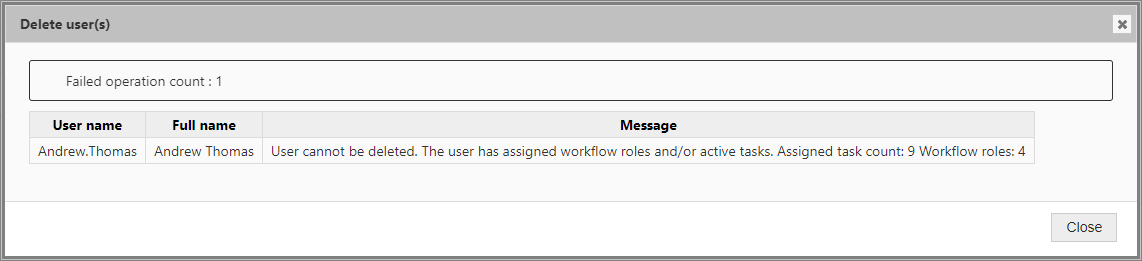
If the selected user has active tasks or workflow roles, you will not be able to delete that user until these tasks and workflow roles have either been completed or transferred to another user. Refer to Transfer of Ownership.
Examples of when deleting a user is not possible
- User has checked out documents
- User has active tasks
If the user has active tasks, you must first transfer these tasks to other users before deleting the user.
To find out if the user owns documents and folders, or which documents he/she may have checked out, perform the following:
- Navigate to the MAGIQ Documents control panel
- Click Manage Users
- Select the user from the list of users
- Click properties located in the left sidebar to launch the "user properties" window.
User Properties window
Notice that the user properties window contains many links to describe the selected user.
For more information on this topic refer to the User Profile.
Note
If the user owns folders or documents, MAGIQ Documents will warn you and still allow the deletion of the user. The documents and folders for deleted users are kept intact.
You may consider transferring the users documents and folders to another MAGIQ Documents user before deleting the user. For more information on this topic refer to Transferring ownership.