Viewing pane
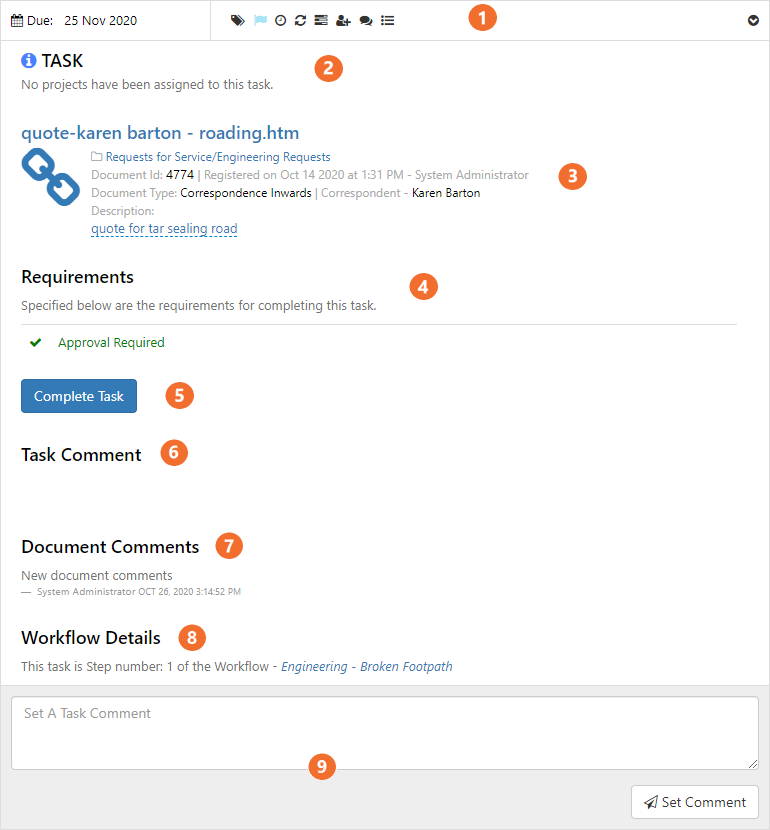
 Task options

 Due Date
Shows when the task is due.
 Manage Projects
Allows you to apply coloured tags to define your tasks.
For more information refer to projects.
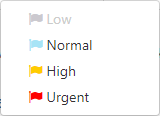
 Change Priority
Allows you to assign priority to the active task - Low, Normal, High, or Urgent.
 Postpone this Task
Allows you to change the due date for the active task. This option is only available if the task assigner has selected 'Change Due Date' when assigning the task.
For more information refer to postpone task
 Refresh Task Information
Refresh the active Task.
 Create Associated Task
For more information refer to create associated tasks.
 Reassign Task
Reassign the Task to a new User.
For more information refer to reassign task.
 Add Document Comment
Add a comment to the Document (not a task comment).
 View Workflow
Opens task and workflow window from the document properties screen to identify:
- All Tasks and workflows on the Document.
- Current workflow - shows active workflow
- Workflow history - shows completed workflow.
- Current tasks - shows active tasks.
- Task history - shows completed Tasks.
 Manage Task menu
For further information refer to Manage Task Menu.
 Task Instruction and Project Tag
Displays the task instruction and project tag, if created.
For further information refer to Projects.
 Document Information
Displays the name of the document, the folder path where the document resides, the document numbers, who it was registered by and on what date, The Document Type, Correspondent Name, and the document description.
To edit the document description:
- Click the document description.
- Enter the new description.
- Click the tick to save.
 Requirements
Displays the tasks requirements. These items must be completed for the 'Complete Task' button to display (labelled 5).
For more information refer to completing tasks.
 Complete Task button
Only displays if all requirements have been met.
For more information refer to complete tasks.
 and
and  Task Comments
Displays the task comments entered.
To add a task comment
- Enter details in the box provided.
- Click Set Comment to add.
The comment will display under 'Task Comments'.
 Document Comments
Displays the document comments entered.
To add/create document comments:
- click at the top of screen.
 Workflow Details
Displays what the Step Number (of where the task resides) and the name of the workflow.
To view the workflow details
- Click the workflow name (in blue text).