Document Libraries / Creating Libraries
Only the System Administrator and members of the [Administrators] global user group can create and delete libraries.
To create a Library:
- Select the Control Panel tab.
- Click Manage your libraries, users and user groups.
- Click New located in the left sidebar.
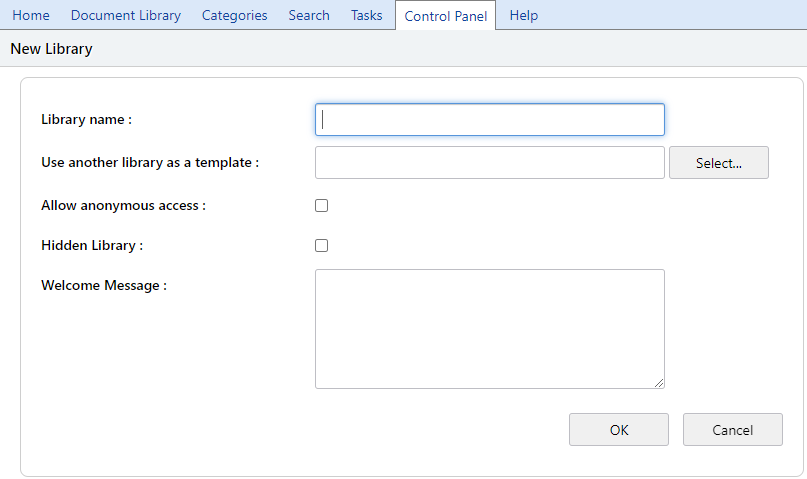
Library Name
Enter a name for the new library
Use another library as a template
Leave this blank if creating a new library
Using this option copies all documents and folders from an existing library to the new library
Tip
Use the "Use another library as a template" option to use a pre-existing library as a template.
Caution: Creating a library using a model library may take a long time if the template library is contains a lot of folders and documents.
If you regularly use the same format or folder structure for document libraries, creating a template library may be a very good idea.
Allow Anonymous Access
Tick to allow the Library to be anonymously accessed.
Note
Anonymous Libraries are used to publish public documents into a common area where everyone who can navigate to the Library can access documents without having to log on to or be defined as an MAGIQ Documents user. Anonymous users are only able to click and view documents.
Hidden Library
Hides the Library from regular view. The Library will only be visible if users set their Library view options to Show Hidden Libraries.
Welcome Message
(optional) When users are made Library members a Library invitation can be sent. The welcome message entered here in this section is automatically inserted into the invitation email.
- Click next to continue the wizard.
The Add library members window will appear.
- Select from the list of global users to add to the library as library members.
- Click next to continue the wizard.
The Add library members (Global User Groups) window will appear.
- Select from the list of global user groups to add to the library as library members.
- Click next to continue the wizard.
The Folder Security window will appear.
- This window will allow you to assign security to the previously selected users and groups.
- Click Finish
Creating and using template libraries:
- Create a new library
- Create the folder and sub-folder structure you wish to use for new libraries.
- Create the documents (if any) you wish to have in each new library you wish to create.
- Do NOT specify any members for the library so the library is not in plain view of other users.
- When creating new libraries, use this library as a template.