Word or Excel Connector / Open a Document from MAGIQ Documents to Create a new document
Create a new document or spreadsheet based on an existing document within MAGIQ Documents.
- Open word or Excel
-
With the connector panel open, select Open document from MAGIQ.
Leave the Optional Doc ID.
-
Click

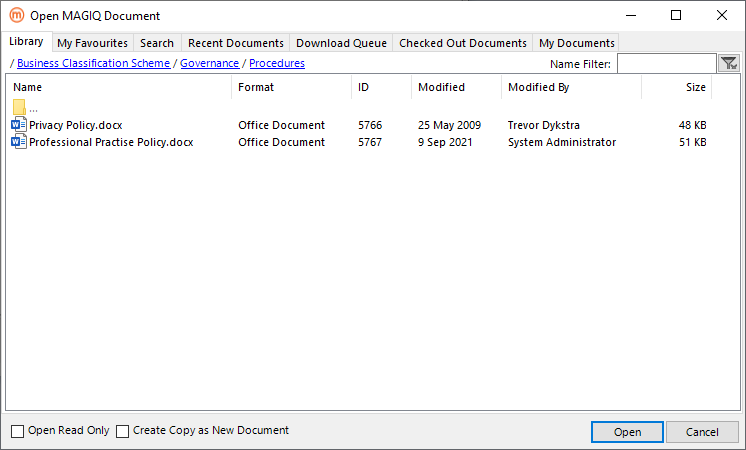
The Open MAGIQ Document window displays
-
Select a document from the library, search result, My Favourites, Recent Document, Download Queue, Checked-Out Document or My Documents tabs
The total number of documents or folders displayed depends on what is specified for the Maximum folders to display in the Application Preference Settings. If the document or folder does not display, search via the search tab
-
Tick Create Copy as New Document.
-
Click

-
The Document or spreadsheet opens and is checked out to the ‘Local Checked-Out Document’ folder.
The Library, Meta Data and Version Save tabs are now visible
-
Library tab - Specify which folder the document is registered to.
-
Enter the relevant details into the Metdata Tab.
-
Click
-
Enter the relevant information on the Version Save tab.
-
Click
 . Saving works in conjunction with 'Office Save to MAGIQ' options.
When the document is saved successfully with 'Keep Document Open' the 'Library' and 'Meta Data' tabs can no longer be modified.