Reporting / Cloud / Analytics / Naviation Tree
Note
The selection(s) made in the Navigation Tree will be presented in the Data Browser and Chart windows.
The Data Browser and Chart windows are synchronised to change when you click on the folder you require
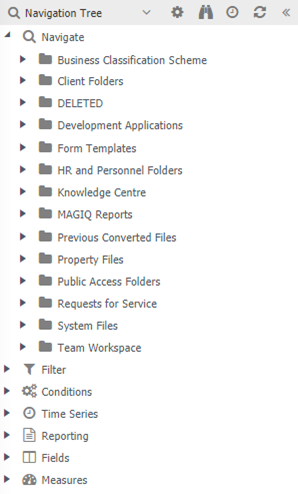
The Navigation Tree is used to select and navigate through your structure.
This can be expanded by double clicking on the name of the layer that you wish to expand, or select the plus symbol and this will expand the layers however it will not update the data in the Data Browser until a layer is selected using the left mouse click.
Navigation Tree buttons
 Collapse - Collapses the navigate tree.
 Configure - Configuration settings to determine whether Navigate, Filters, Conditions, etc are visible and or expandable.
 Find - Search for relevant filters, conditions etc.
 Time Series - Not applicable for documents reporting.
 Refresh - Refreshes the navigation screen to the default.
Navigate
Note
The folder of DELETED displays the folders that have been deleted in the system.
The folders depict the hierarchy in your data structure. All Document Libraries are presented based on what is defined in MAGIQ Documents.
Filter
Filters work in a similar way to navigate (Above); however, they are used as a way of filtering data and show only what is selected or excluded.
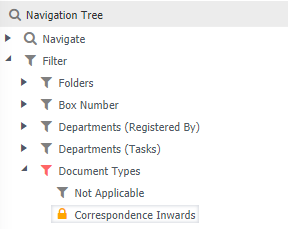
 No filter applied.
 Filter/Condition is applied at lowest level.
 Filter/Condition is applied.
Right click on a filter to exclude options, for example, the library filter, you might want to report on all libraries, but exclude certain ones.
Conditions
A condition is like a parameter, it prompts for information such as date ranges.
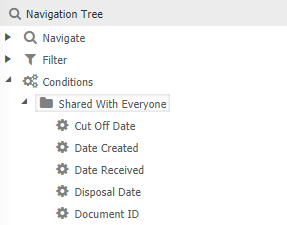
Condition Explanation
Cut off Date - Specify a Date Range based on when a folder or document has been cut off in accordance with the Retention and Disposal Schedules.
Date Created - Date the folder or document is created.
Date Received - Date the document is Received. This is based on the document additional metadata custom property set.
Disposal Date - Date the document is disposed.
Document ID - Enter a document ID.
Expiration Date - Date the document has/is expired.
First Correspondent - Display only the first correspondent on the report.
Has Document Retentions - Display documents that have a retention schedule applied.
Has Folder Retentions - Display folders that have a retention schedule applied.
Has Tasks - Display documents that have tasks.
Next ISO Review Date - Display documents that have a Next ISO Review Date.
Published Date - Date the document is published.
Registered Date - Date the document is registered.
Resubmits - Documents that have resubmits.
Retain Until Date - Specify a date range for documents that have a retain until date (used in conjunction with retention and disposal).
Task Due Date - Specify a date range based on the due date of a task.
Task Finish Date - Specify a date range based on when the task was finished/completed.
Task Overdue - Displays tasks that are overdue.
Task Start Date - Specify a date range.
Transfer Date - Works in conjunction with Retention and Disposal of when records are transferred to an off-site storage location.
Time Series
Not Applicable for MAGIQ documents reporting.
Reporting
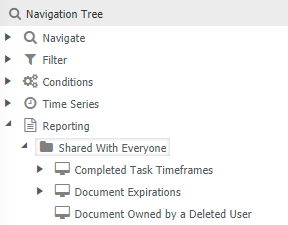
Displays a list of saved reports that have been 'shared with everyone', 'shared with my group' or are 'not shared'.
These reports retain the selected layers and fields and can be saved with the drill path, filters, time series and conditions.
For a list of MAGIQ Documents standard reports, refer to the reports section of this document