Word or Excel Connector / Use the Local Checked-out Documents folder
Continue editing your document/spreadsheet while out of the office(offline). When you are connected back to the office you are then able to save your changes (create a new version)
- Open word or Excel
-
Select Open Local Checked-Out Document from the MAGIQ Documents panel
-
Click

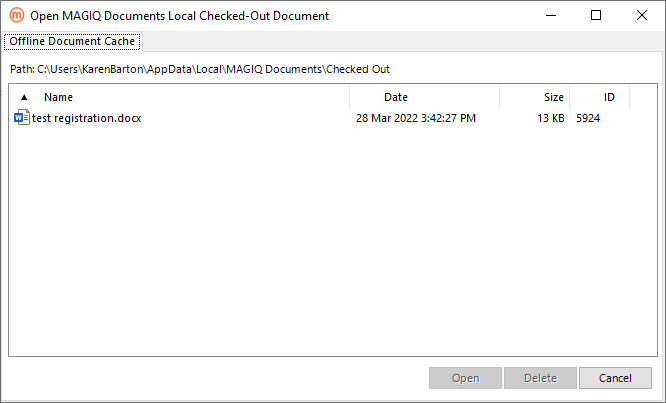
The Open MAGIQ Documents Local Checked-Out Document window displays
Note
Documents that have not originated from the Office Connector are excluded from the list.
- Select the relevant document.
-
Click
 Connected to MAGIQ Documents - the fields in the Version Save tab are enabled with the Next Version Number field incremented by one.
No connection to MAGIQ Documents - the fields in the Version Save tab are disabled (including the Save to eDRMS button).
-
Continue editing your document or spreadsheet.
If no connection to MAGIQ Documents, use the Word or Excel Save button or the auto save option.
If connected to MAGIQ Documents, select Automatic or Manual from the Office Auto Save MAGIQ Options of the Document tab in the MAGIQ Documents panel to specify how you want versions updated in MAGIQ Documents. Use the Word or Excel save button or auto save option to save the version into MAGIQ Documents.
Save a document to the ‘Local Checked-Out Document’ path
This can be a new document or one opened from MAGIQ Documents.
From the Version Save tab select the relevant 'Save to MAGIQ' Action of
Keep Document Open to uploads the document to MAGIQ Documents and leaves the document open in the’ Local Checked-Out Document’ folder for continued editing.
Or
Close Document and Keep Checked-Out which uploads, closes and checks-out the document to the ‘Local Checked-Out Document’ folder.
Deleting a Document from the Local Checked-Out Document folder
- Open word or Excel
-
Select Open Local Checked-Out Document from the MAGIQ Documents panel
-
Click
The Open MAGIQ Documents Local Checked-Out Document window displays
-
Select the document you wish to delete
-
Click

Displays the message of:
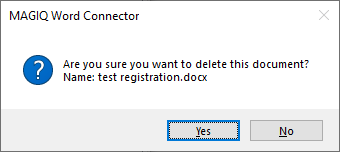
Yes deletes the document from the ‘Local Checked-Out Document’ folder as well as deleting the document id sub folder.
Connected to MAGIQ Documents - the document is checked-in without uploading a new version.
No connection to MAGIQ Documents - deletes the document from the "Local Checked-Out Document" folder.
No returns to the Open MAGIQ Documents Local Check-Out Document window.