Documents / Checking Documents In - Creating new document versions.
MAGIQ Documents allows you to create multiple versions of documents. Using this feature, you can revert back to prior versions of documents. The Check In - Check Out mechanism built into the core of the software allows you to maintain document integrity.
To make changes to documents, you must first check documents out, make changes then check them back in.
To check in a document
-
Click the Action menu > Check In or select the document by clicking on the check box, then choose the menu Edit > Check In.
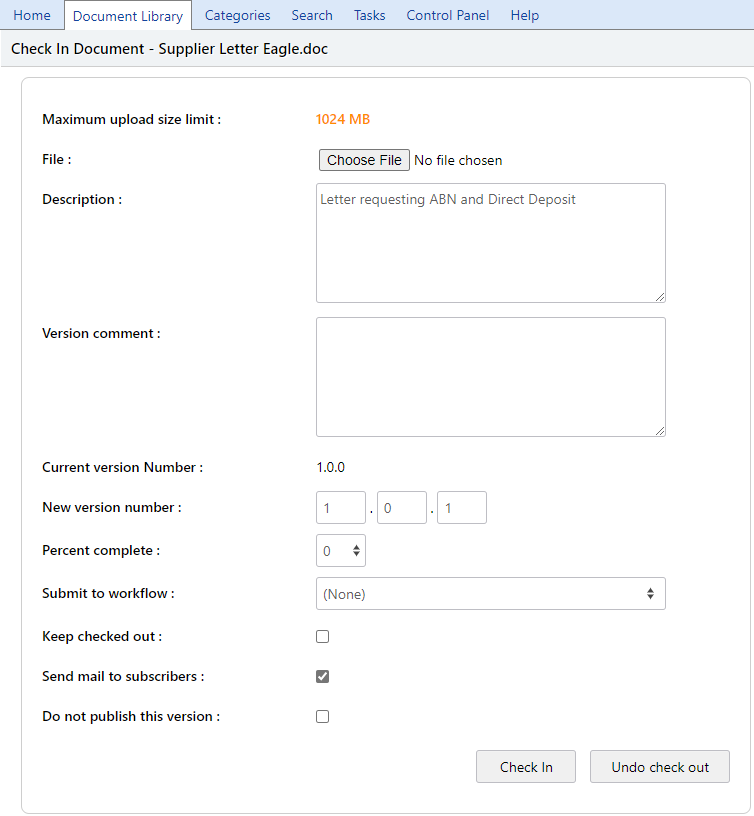
-
Click Choose File to navigate to the path where you downloaded your local copy and made your changes.
- Enter a document description
- Enter your version comments (optional)
- New version number has incremented automatically to the next number. This number can be changed if you wanted to identify a "master" document.
- Update the "Percent Complete" information or set a "Completion Date" if you have completed this document. Otherwise, leave this blank or select a percentage to reflect the completion status of your document
Note
Marking a document as complete will disallow further edits to this document until the completion date is reset or the percent complete information is set to something other than 100% (optional).
- Choose a workflow from the list provided, if you require someone else to work on the document. (optional)
- (Optional) Check Keep Checked Out if further work is to be done.
- By default, the "Send Mail to Subscribers" is checked. If you feel that you have more work to do with this document and would not like to notify users just yet, then uncheck the "Send Mail to Subscribers" check box.
- (Optional) check "Publish this version" if the version is currently unpublished (Optional).
- Click Check In, a new version is now created.
Force "Check In"
Force "Check In" is a special right that allows a user to "Check In" a document that is checked out to another user. This action unlocks the checked out document, allowing other users to check this document out and make changes.
In order to be able to Force "Check In" a document, one of the following is required:
- You must be the owner of the document
- You must have Full Control rights to the document
- You must be the System Administrator.
- You must be a members of the Administrators system user group.
- You must be a Library Manager.
To Force "Check In" a document
- Select a checked out document
- Click the Action menu > Properties
- Scroll down to the section labeled Checked out by
- Click Force Check in
- Confirm that you wish to force check in the document