The Menu System / New Menu
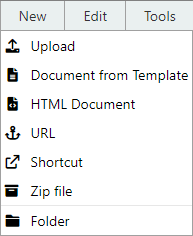
Upload
Upload an existing document into MAGIQ Documents.
For more information on this topic refer to Uploading Documents.
For alternative options in registering documents into MAGIQ Documents, refer to
Document from Template
Select from a list of available "Form Templates".
Documents designed for particular purposes can be created by inputting data into a form which will generate and save the final document and accompanying data in MAGIQ Documents.
An example of this is outlined in the Customer Service request how to guide.
Note
Templates can be created to perform a range of functions to suit an organisations specific need.
Contact your system administrator regarding setting up templates.
See Also
HTML Document
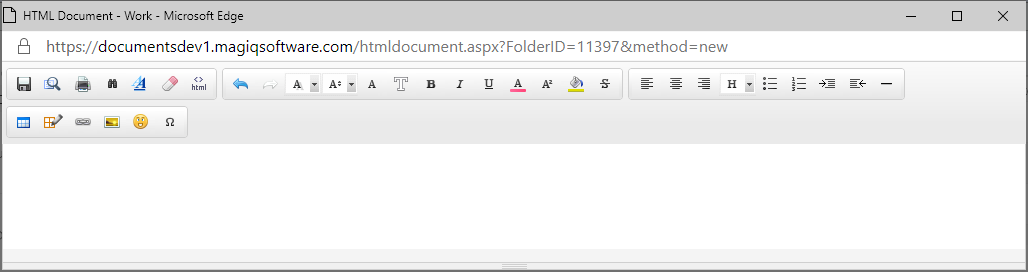
This launches a basic editor from which you can create and save documents directly into MAGIQ Documents without the need for additional word processors etc.
Documents are saved in HTML format.
Note
An example of this maybe to create a File Note in a folder, or create a record of a diary entry or phone conversation
To create an html document
- Using the document library navigate to where the document is to be created.
- Select New > Html Document.
- Using the built-in editor create your document and press Save icon.
- Enter the required metadata.
URL
Enables you to create a link to a document within MAGIQ Documents or to an external website.
For more information on this topic refer to URLs for further information.
Shortcut
Create shortcuts in folders that will launch documents stored in other folders.
For more information on this topic refer to document shortcuts.
Zip File
Uploads a Zip file and extracts and registers the contents.
For more information on this topic refer to Using Zip Uploads.
Folder
This menu item executes a window that allows you to create a Folder. For more information on this topic, navigate to Create new folders. This function is usually restricted to the system administrator.
For more information on this topic refer to creating folders.
Word document from Template
Create a new document based on a word template that exists within MAGIQ Documents. This will provide a document id number first.
For more information on this topic refer to the AutoReply guide.
Upload via Workbench
Register/upload documents in MAGIQ Documents via the Document Workbench Module.
For more information on this topic refer to the Workbench guide.