Manage Task Menu
This menu can be found in either the Task pane, alongside every task; and in the Viewing pane.
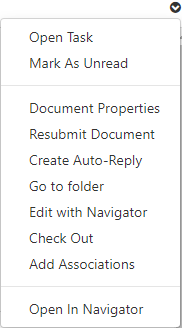
Open Task
Opens the task screen in a new window to change Due Date, priority, create an associated task, reassign the task, or delete the task (if security allows it). You can also use this screen to view Task workflow.
For more information refer to open tasks.
Mark As Unread
Mark the task as unread so the heading will go back to a bold font to show as if it has not been viewed.
Document Properties
View the Document Properties of the document attached to the task.
For more infromation refer to documents properties
Resubmit Document
Allows the document to be brought back into a user's intray on a given date. This be done as another task or through ISO/Periodic review workflow.
For more information refer to periodic (ISO) Reviews
Create Auto-Reply
Use the Auto-reply function to respond to the document.
For more information refer to the auto reply generator guide
Go to folder
Open the folder the document is saved in.
Edit document
Edit the document using Microsoft Word or Excel.
Edit with Navigator
Edit the document using the navigator. This uses MAGIQ Office to edit the document. If using easyforms, using this option will open the document in EasyForms for editing.
Check Out
Checks out the document ready for download/saved to a destination to be worked on.
A checked-out tag will display to indicate that the document is checked out for editing.
You will not be able to check out a document if the library policy does not allow check outs and Check In, the document completion status is set to 100%, the workflow does not have edit permission.
For more information refer to document check outs
Add Associations
Ability to associate the document to another document or folder.
Open in Navigator
Opens the document in the document navigator.
For further information, refer to the Document Navigator Guide.