Word or Excel Connector / Panel Options / Open Document from MAGIQ
Open a document from MAGIQ Documents to read, edit and save the modified document as a new version in MAGIQ Documents. Or, create a new document based on an existing document.
Note
If other documents or spreadsheets are open this function does not impact on them.
Options Doc ID
Enter a document ID, Click Next, the document is opened for editing, checked-out and downloaded to the ‘Local Checked-Out Document’ folder.
Leaving the Optional Doc ID blank, Click Next, Opens the Open MAGIQ Document window.
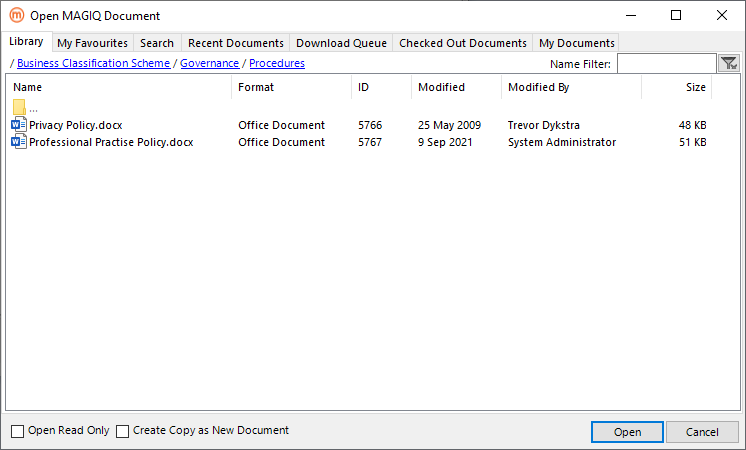
Name Filter Search for a document or folder name. Documents or folders matching the filter will be displayed. Wildcards are used as the filter applies to any part of the name.
 removes filter and re-display results.
Sort by Column - Clicking a column name sorts the list in ascending or descending order.
Tooltip - Displays the ID, Description and Path for the folder or document.
Colour Coding of Document Names - Documents checked out display in red. Documents that are unpublished display in grey. Documents checked out and unpublished display in magenta. A tooltip displays who has the Document checked-out.
Double Clicking Folder - Displays the folder structure within the Library tab of the Open MAGIQ Document window.
Double Click Document - Opens the document (same as single click document then click Open button).
Open Read Only - Option to open a document in read only mode when Open button is clicked. The Word or Excel title bar displays [Read Only].
Each document that is opened as ‘Read Only’ is downloaded to a document id subfolder in ‘[Path.GetTempPath]\MAGIQ Documents\ReadOnly\’ for example ‘C:\Users\Trevor\AppData\Local\Temp\MAGIQ Documents\ReadOnly\5588\NEW contract.docx’
Closing the document deletes the subfolder and document from ‘[Path.GetTempPath]\MAGIQ Documents\ReadOnly\’
With this flag checked the user Create Copy as New Document flag is disabled.
Create Copy as New Document - Option to open a document as a new document. User saves the document to MAGIQ Documents as per Save current Document to MAGIQ with the Library tab defaulting to the folder of the original source document.
With this flag checked the Open Read Only flag is disabled.
 Disabled until a document is selected. Document opens for editing and is checked out to the
‘Local Checked-Out Document’ folder. The Library and Meta Data tabs are enabled; however the values in these tabs are disabled.
The Version Save tab is the active tab displayed.
Disabled until a document is selected. Document opens for editing and is checked out to the
‘Local Checked-Out Document’ folder. The Library and Meta Data tabs are enabled; however the values in these tabs are disabled.
The Version Save tab is the active tab displayed.
Opening a document as Read only, The Library tab is visible with the folder structure displayed where the document resides. The Meta Data tab is visible with the fields of Associations, Submit to Workflow, ability to add additional custom property sets and the version tab in MAGIQ Documents panel is hidden.
 Displays the Document tab and clears fields.
Library Tab
- Displays the previously accessed/used folder.
- Folders and documents are displayed. Word documents for the word connector or spreadsheets for the excel connector.
- Double-Click folder name opens folder contents.
- Current folder path is displayed as a ‘breadcrumb’ at the top of the list of folders & documents - user can click on part of the breadcrumb to navigate back to a parent folder.
- Only documents can be opened.
My Favourites Tab
Display the documents or spreadsheets that you have set as a favourite in MAGIQ Documents.
Search Tab
Search for document and folders.
Search fields change depending if ‘Document or Folders’, ‘Documents Only’ or ‘Folders Only’ is selected.
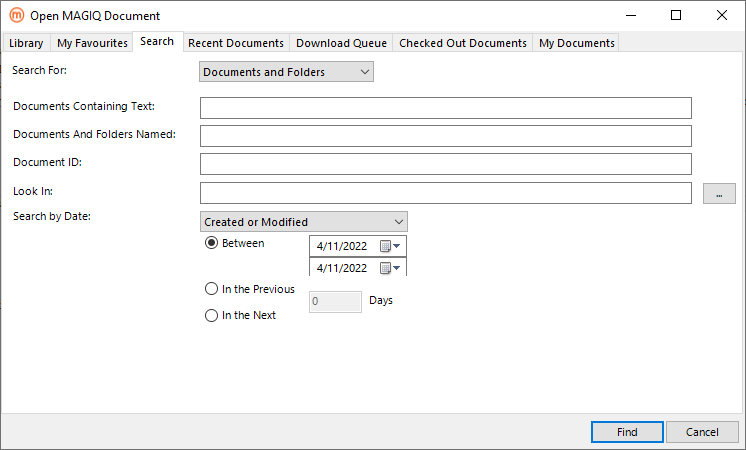
Search For - Choose either ‘Document and Folders’, ‘Documents Only’ or ‘Folders Only’.
Documents Containing Text - Search for text within documents, document description, version comments etc.
Documents and Folders Name - Search for folders or documents with a specific name or use wildcards to search for partial names.
Document ID - Search for documents with that id number.
Look In - Displays the selected folder path for locating documents or folders.
 displays a list of Document Libraries and allows users to "drill down" to select a sub folder.
Search by Date - When searching for ‘Document and Folders’ or ‘Documents Only’ the options are: * Date Created. * Date Modified. * Created or Modified. * Date Registered. * Last ISO/Periodic review date. * Next ISO/Periodic review date. * Completed On. * Expiration date. * Retain until. * Disposition date. * Cut-off date. * Declassify on. * Downgrade on.
When searching for ‘Folders Only’ the following Search by Date options are available: * Date Created. * Retain until. * Disposition date. * Cut-off date. * Declassify on. * Downgrade on.
Selecting Search by Date displays additional date fields of Between, In the Previous or In the Next fields.
A days field is displayed as the users are required to enter in a number of days with ‘In the Previous’ or ‘In the Next’ selection. Zero can be entered, for today’s date.
Between is based on a date range.
In the Previous relates to the options of ‘Date Created’, ‘Date Modified’, ‘Created or Modified’, ‘Date Registered’, ‘Last ISO/Periodic review date’, ‘Completed On’, ‘Expiration date’, ‘Retain until’, ‘Disposition date’, ‘Cut-off date’, ‘Declassify on’ and ‘Downgrade on’
In the Next relates to ‘Next ISO/Periodic review date’, ‘Expiration date’, ‘Retain until’, ‘Disposition date’, ‘Cut-off date’, ‘Declassify on’ and ‘Downgrade on’.
 to locate or return the search result.
Recent Documents Tab
Display list of your recent documents.
Download Queue Tab
Displays list of documents from your My Download Queue.
Checked Out Documents Tab
Displays list of folders and documents from your My Checked out documents.
My Documents Tab
Displays list of documents where the you are the document owner.