Publishing Portal / Manage Categories
Categories are the highest level in the management chain (Equivilant to a Division). Category administrators are able to manage assigned categories, all organisations (facilities) and users contained within the category.
Create Categories
- Click

- Enter a Category Name.
- Select a either Private or Public from the Category Type dropdown.
- Enter a Description, if relevant.
- Click Ok.
Selecting the Category name will display the following information:
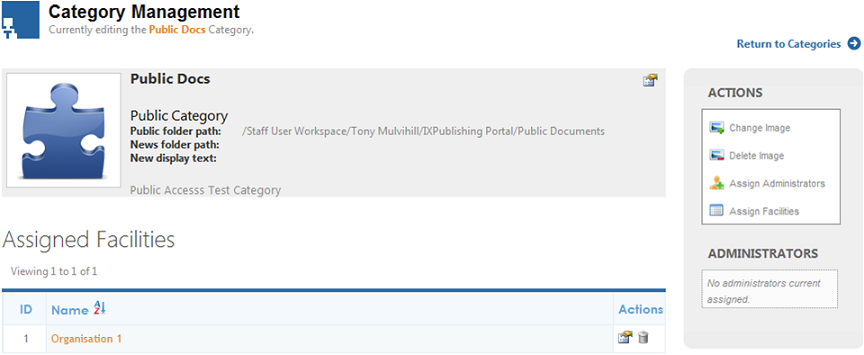
Allocating Folder Paths, Public or Private Access:
- Click
 (Change) to the right of the category name.
 - If all users can view the folders and documents within this category, tick 'Category is Public'.
- Folder Path - Within MAGIQ Documents choose the folder properties, select Show URLs next to the folder id, copy the folder path specified ie /Development%20Applications/2011/DA12345 and remove the %20 (the xml coding for a space) for example /Developmens Applications/2011/DA12345
- News Folder – Nomiate a folder where documents will reside. When the users clicks News or My News, its referenced to this path. If rss feeds or scrolling text documents are required, these can be placed on the home portal.
Assigned Facilities
Displays which facilities are associated with this category.
To Assign Facilities
- Click Assign Facilities in the Actions menu.
- Tick the box next to the Facility Name.
- Click OK.
Actions
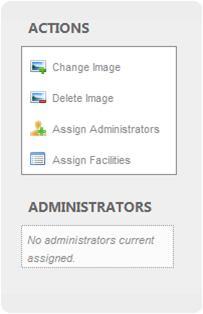
*** Change Image*** – Changes the image / photo of the category.
Delete Image – Removes the image / photo from the category.
Assign Administrators – Specifies who can administor this category. Once the relevant Administrators have been applied, their names will display below the actions menu.
Assign Facilities – Specifies which organisations are associated with this category.
Administrators
Lists who can administor the category.
Deleting Categories
There are two ways a category can be deleted:
-
Tick the box next to the category name that you wish to delete and click

or
-
Click
 next to the cateogry name.