Custom Property Sets / Creating a Custom Property Set
To create a Custom Property Set
- Select the Control Panel tab.
- Click Custom Properties.
- Click New menu located in the left sidebar.
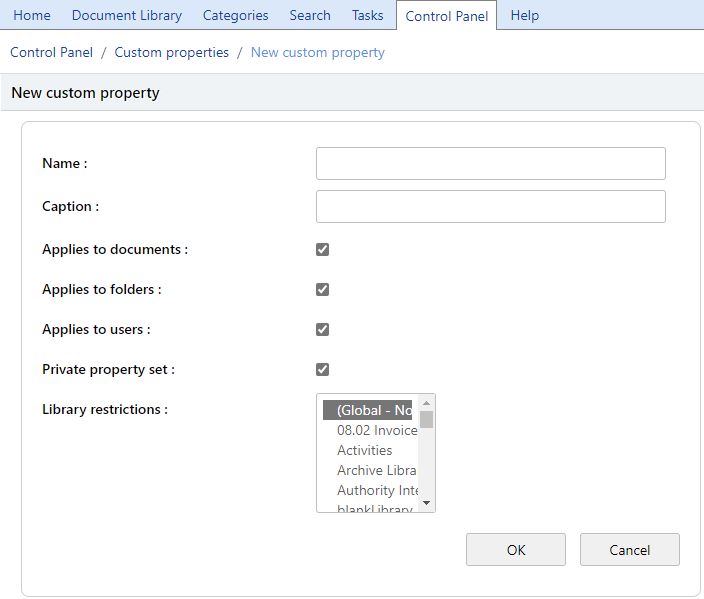
- Enter the Name. This is what is written to the SQL Database.
Note
Please do not use spaces or special characters in the Name field. Using underscores in place of spaces is recommended..
- Enter a Caption. What the user will see when selecting a custom property set.
-
Select the appropriate check boxes to specify if this new custom property applies to
-
Applies to Documents - Untick if the custom property set will not apply to documents
-
Applies to Folders - Untick if the custom property set will not apply to folders, and
-
Appies to Users - Untick if the custom property set will not apply to users.
-
-
Private property set - Leave ticked if you wish to make this custom property set only visible to logged in users. Un-tick if the custom property set is made available for anonymous user
- Library Restrictions - Select which library the custom property set will relate to.
Note
If you wish to make the custom property available in all libraries, select the "Global - No restriction" option (default option). Multiple Libraries can be chosen from the list.
- Click Ok.
Please refer to fields for information on adding fields to your Custom Property Set.
Security Considerations
Only the System Administrator and members of the [Administrators] user group can define custom property sets.