Retention and Disposal / Getting Started
The below describes what needs to be setup for Retention and Disposal to function.
Control Panel
Global User Groups
The global user group of [R and D Managers] needs to have a user specified. This user will be sentencing (disposing) documents as this user will receive task notifications.
If no users are specified, the task notification will go to the system administrator.
Note
If multiple users are entered, only one person will receive the task notification.
Libraries
The following library policies need to be changed to allow retention and disposal schedules to be applied.
Retention and Disposal Schedules
New – Creation of retention and disposal schedules for use on folders and documents.
Properties – Edit details of a selected schedule
Delete – Deletes a schedule
R&D Authorities – Adding authorities will display in the R&D Authority dropdown in the New screen.
View – View properties of the selected schedule
Save As – Allows for saving an existing schedule with a new name. Ideal if you are creating additional schedules.
For more information on creating schedules, refer to schedule information or bulk loading schedules.
Creating Schedules
- Click Control Panel tab.
- Choose Retention and Disposition Schedules.
- Click New.
Refer to retention schedules
Apply schedule to a Document or Folder
- Navigate to the relevant folder/document
- Select Properties
- Scroll down to the Retention and Disposition Settings section.
- Click Edit.
- Select the relevant schedule name
- Tick ‘Include Subfolder’ and ‘Include documents’ if you want the schedule to be filtered throughout that folder. This is on folders only.
- Click Ok.
Permanent Documents
A permanent document can remain within the business classification scheme. The schedule that is applied will have the retention period of ‘Permanent’.
Cut-Off Dates
Note
Apply a cut-off date to documents only. Applying a cut-off date to folders disallows new documents.
If the disposal schedule is set to ‘Upon Cut-off’, once the date is entered into the document / folder properties, the disposition date is triggered.
Disposing of documents
Associated Documents
Retention and Disposal on associated documents will be treated as individual documents.
If the document has been disposed of, the documents will no longer be associated.
Document Shortcuts
If the document is being disposed of, the shortcut will also be disposed.
Disposal Process (Example Only)
Note
The information contained in this section is an example only. Each site should produce their own internal processes, based on the public records office recommendations.
Please consult with your State Records Office for clarification.
Current Methodology:
- Retention Schedule is placed on the folder i.e. GA39 12.1.10 – 9YR – Finance – Audit.
- Upon document registration the retention schedule is inherited from the folder.
- Record document id on physical document and place into relevant box.
- A good indication as to when to start destroying documents is when a box has been sitting on the shelf for the given period, or when the box is full.
Important Information:
With a cut-off date applied to the folder no new documents can be registered into it. This means, a new folder would need to be created – not an ideal solution considering an electronic folder is forever evolving.
As a cut-off date would not be applied to the folder (due to the above), responsibility is on the document to have the cut-off date applied. The best way for this to be achieved is when the box with the physical documents is full. Manually go through and apply the cut-off date. Once the disposal period is reached an email notification will be sent for every document. Again, not an ideal solution as it will become very time consuming.
Automated Process
Note
For more information, contact your MAGIQ Documents Consultant/Support.
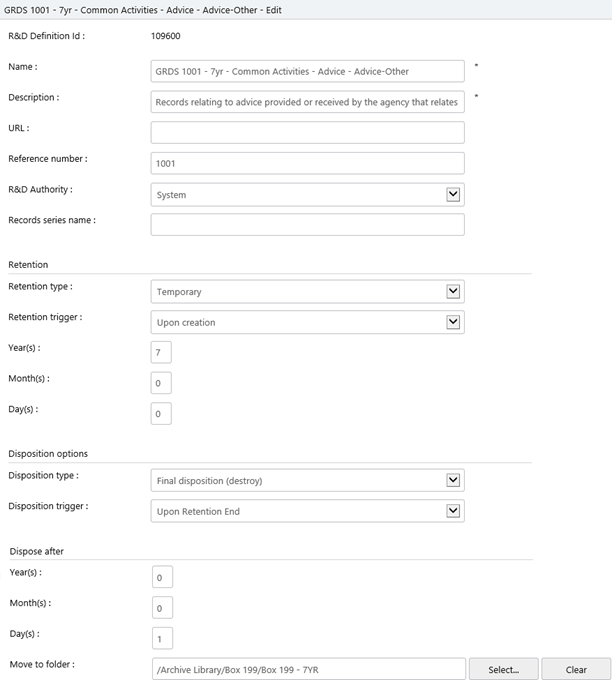
To move towards an automated process, the schedules will need to be modified so that the ‘Retention Trigger’ is ‘Upon Creation’, the disposition option is 'Upon Retention End' and ‘Dispose After’ is 1 day, and a ‘Move to folder’ path is entered.
The move to folder path would be to an archive library (refer below for more information on that). Move to folder is like doing a cut and paste, except the system is doing that automatically. All metadata is retained.
For example:
Task Notifications
To receive task notifications, one member of the records team must be a member of the global user group ‘R & D Manager’.
The ‘R & D Manager’ will receive one task and a task notification email per document when the disposition trigger is executed, which would be 1 day after the retention end.
Disposing of documents in MAGIQ Documents will remove the document and metadata, task information etc. from the system, therefore, prior to disposing of the documents, the ‘R & D Manager’ must run reports based on your records legislation for example, NZ Archives or QLD State Archives.
Archive Library
When the physical document is registered into MAGIQ Documents, the box number is being recorded against the document and its being placed into the relevant box in the records room.
An electronic document, such as an email, outgoing letter etc. does not have a box number applied at registration, therefore the schedule name is the reference to where it would go into the archive library.
Reports
Before documents can be disposed of, a series of reports must be generated, as per record your destruction legislation.
Reports are then saved in MAGIQ Documents as a reference to indicate those documents did exist in council but have since been disposed due to legislation requirements.
Reporting
There are a number of reports that can be run.
Document / Folder Reports:
- ‘BoxNumberDetails_01’ gives a brief listing of the documents.
- ‘BoxNumberDetails_02’ gives a detailed listing for the documents.
Administration / Statistical Reports
- ‘Retention and Disposal ScheduleXLS’ – Report is run in Excel, and lists details of schedules.
- ‘Retention – DocumentRetentionsXLS’ – Report is run in Excel. Lists documents that have a retention schedule applied, includes last modified date, last accessed etc to assist with ‘After last action’ disposal action.
- ‘Retention – Documents Ready for TransferXLS’ – Report is run in Excel. Lists documents where the disposition is applied.
- ‘Retention – Documents Transferred’ – Report is run in Excel. Lists documents where the Transfer Date Submitted is entered.
- ‘Retention – Frozen DocumentXLS’ – Report is run in Excel. List frozen documents.
- ‘Retention – FolderRetentionsXLS’ - Report is run in Excel. Displays which retention schedules are applied to folders.
- ‘Retention – Frozen FoldersXLS’ – Report is run in Excel. Lists frozen folders.
- ‘Audit Document Disposition XLS’.
Legislation Requirements
Please refer to your appropriate states / public records office for information on what information needs to be gathered.