Complete Tasks
Note
All requirements must be completed before the 'Complete Task' button is visible.
To Complete a task
- Select the Task you want to complete from the Task list.
- View the Task Requirements on the right-side of the screen.
-
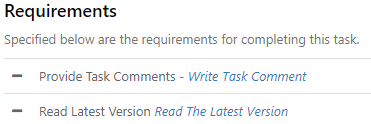
Actions are required to be completed will show in a grey with a blue link to enable easy completion. For example,
-
Actions you have already completed will show with a green tick. For example,
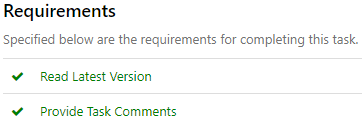
Once all Task requirements have been met, you will now be able to complete the Task. A blue Complete Task button will appear.
-
Click Complete Task
The button will turn green and the Task will be removed from your Task queue.
To bulk complete tasks
- Ensure all task requirements have been met.
- Tick boxes next to tasks.
- Click

- Choose Complete Selected Tasks