Outlook Connector / How to Register
Emails
- Drag and drop your email into the box which states ‘Drag your email or attachment here to save to MAGIQ Documents’. The library tab will automatically be displayed with the last folder accessed.
- Navigate to the folder. Alternatively, Click Search to search for the relevant file, ideal if registering to a property file. Or Click My Favourites to select a folder that’s located in My Favourites.
- Click the Meta Data tab to verify the details such as document name, description, does a workflow need to be applied?, correspondent information is correct or perhaps an association to another document or folder is applicable. Keyboard command – Use the Down Arrow key to access information in drop downs.
- Click Save to MAGIQ to register / upload into MAGIQ Documents.
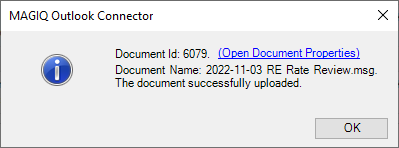
On successful upload, the document id will be displayed. For Example,
Email Attachments
Note
Invalid characters such as / : * ? " < > | # % & + will be automatically removed from the document name before saving.
Note
If the Document Name already exists in the MAGIQ Documents folder then you will prompted to change the Document Name of the email/attachment being saved (unless multiple emails have been drag and dropped, in which case the Outlook Connector will append a number at the end to create a unique document name).
To register email attachments
-
Click and drag the attachments from the email and drop into the the box which states ‘Drag your email or attachment here to save to MAGIQ Documents’.
-
Register as per the above.
Multiple Emails or Attachments
Note
It is suggested to only drag and drop emails (or attachments) from the same sender, so that a single correspondent can be applied to all emails being uploaded. If you need to apply different correspondent meta data for each email (or attachment) then it is recommended to drag and drop each email individually.
Note
If the Document Name already exists in the folder, you will be prompted to change the Document Name of the email/attachment being saved (unless multiple emails have been drag and dropped, in Office and Outlook Connector which case the Outlook Connector will append a number at the end to create a unique document name).
-
If emails are from the same sender then the Correspondent Surname, Given Name, Type and Email meta data fields will be populated based on the Application Preference Settings.
-
If the emails are from different senders then these fields will not be populated. (The Outlook Connector matches the full email name & email address to determine if emails are from the same sender).
-
The Document Name and Description meta data fields will be populated based on the Application Preference Settings, and you cannot change this for each email (if you wish to change the Document Name and Description you should drag and drop the emails individually).
-
If you configure the Application Preference Settings to use the [Subject] variable for Document Name and Description meta data fields and the email has a blank subject then Document Name will be based on the variable Email [Received yyyy-MM-dd-HH-mm] [From Full].
To register multiple emails
- Select Multiple emails in Outlook.
- Drag and drop drop into the the box which states ‘Drag your email or attachment here to save to MAGIQ Documents’.
- Register as per above.