Action Menu (blue action drop down)
When looking at a list of documents and folders in the Document Library, the Action Dropdown appears to the right of the document or folder name.
The icons here allow certain functions to be performed on that document or folder; the functions that are available will depend on your level of security and whether you're looking at a document or a folder;
See below for more information.
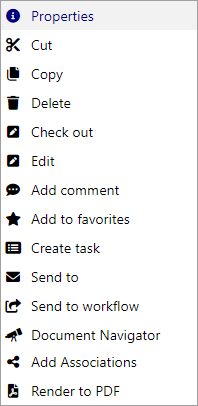
Different action options will appear depending on what you are looking at
Properties
The properties window, for a document, contains information such as the Name, Description, Format, Creation Date, and Owner for the selected document.
Document properties can also include custom properties such as Correspondent Information.
For more information on this topic refer to Document Properties.
Cut
Move the document or folder to an alternate location using the paste function. Once the paste has occurred, the cut document or folder will no longer be accessible from the original folder.
For more information on this topic refer to copying and moving documents
Copy
Copy the document or folder to either the same folder or an alternate location using the paste function. This will create new a document or folder. Copied documents are automatically associated to the original document with an Association Type of 'Copy of'.
For more information on this topic refer to copying and moving documents
Delete
Delete the document or folder. Deleting a folder will also delete all documents within that folder.
For more information on this topic refer to:
Check Out
Documents can be edited by authorised MAGIQ Document users. If a document is incomplete it can be checked out for editing. Once you have made your changes you can check the document back in.
Note
If a document title appears in red this means that it is already checked out, documents that are already checked out are locked for Editing and cannot be edited by other users.
For more information on this topic refer to:
Undo Checkout
This option allows for the check-out action to be reversed. The document will return to the state it was in prior to being checked out and no new version will be created.
Edit
Edit appears only on the Action Dropdown menu and allows users (with the appropriate rights) to edit MS Office documents directly from the browser. I.e. There is no need to perform a check-out.
To access the document:
- Click Edit
- A file download message may appear
- Click OK
- Changes can be made and saved by clicking the save button.
Note
Each 'save' will be recorded as a new temporary version. When the document is closed, the last Version will be retained, and all interim versions are removed.
For more information on this topic refer to webDAV.
Add Comment
Add a comment to the document - Appropriate security clearance will be required.
- Enter a comment.
- Click OK.
For more on this topic refer to document comments
Add to favourites
Add documents/folders to your list of favourites. The list of documents favourites can be accessed from the default portal or via your personal dashboard for both documents and folders.
Create Task
All MAGIQ Documents users can forward documents on to other users in the form of a task assignment. For example, when incoming mail is saved into MAGIQ Documents by records staff it usually needs to be sent to an action officer. This would be done by assigning a task to that nominated user.
Alternatively, once any checked in document is retrieved and needs to be sent to another user, this can also be done by using the task assignments function.
To assign a task
- Select the document you wish to send to another user.
- Select Create Task.
alternatively, select Tools > ***Create Task *** - In the Create Task window, complete the fields you require
- Click OK to send a task to another MAGIQ Documents user.
Send To
Send the selected document(s) to another person via email regardless of whether they are an MAGIQ Documents member or not.
For more on this topic refer to send to option in the tools menu.
Send to Workflow
This menu item launches a window that displays a list of Workflows that apply to the document library and folder you are currently viewing. You can choose an item from the list and submit your document to the selected workflow.
The document will then be directed to users nominated as part of the workflow and will appear on their task list.
System administrators can create additional workflows
Document Navigator
Allows the document to be viewed within the document navigator.
Refer to the Document Navigator guide for further infromation
Add Association
Enter associations based on either the document id or folder id. Documents and folders can be search for and multiple associations can be applied at once.
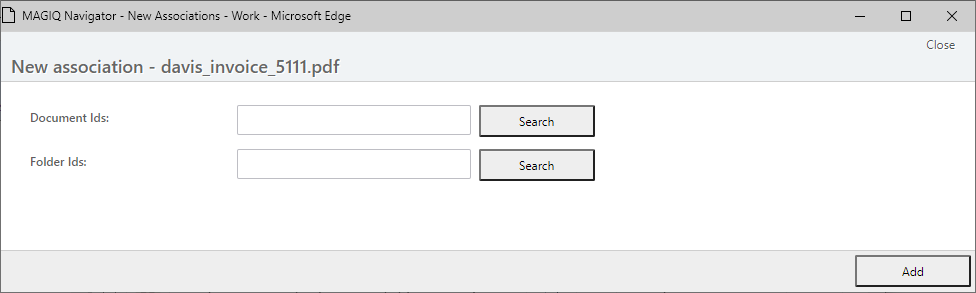
For more on this topic refer to
Render to pdf
Allows the document to be viewed as a PDF or saved as a PDF into MAGIQ Documents as a new document or version.
For more on this topic refer to the Render to PDF guide.