Selecting columns to view in the documents pane
This window allows you to select the columns you wish to see in the right-hand side of your screen. You can choose to display all or some of the available fields. Your column selections will be remembered by MAGIQ Documents.
To select columns for display
- Navigate to a folder.
- Click View menu > Select Columns
- In the window that appears, select from a list of columns on the left
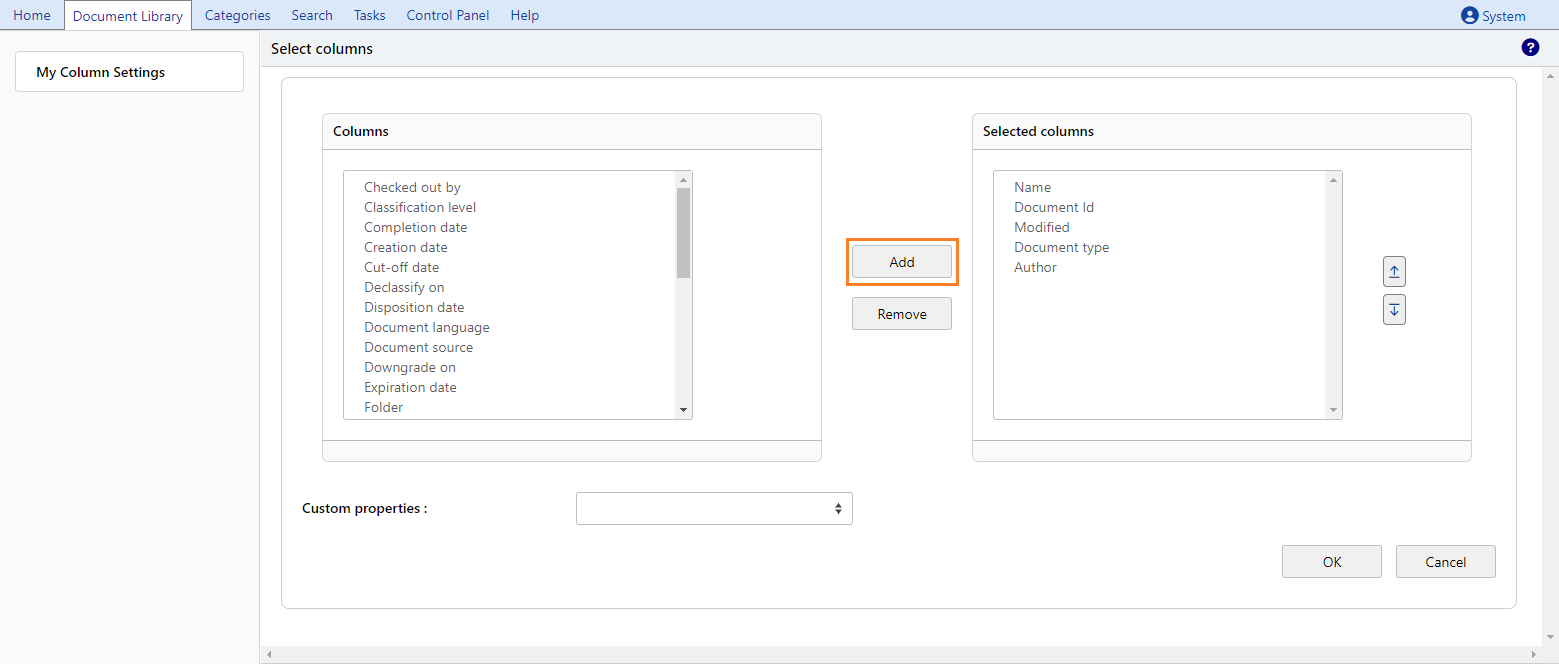
- Add them by clicking Add
Notice that your settings will remain in effect until you change them.
My Column Settings
Displays your current column settings. These are the columns you see when viewing the document Library.
You can change your default column headings by clicking Select.
This will enable you to select from a complete list of columns that you wish to display in the document library.
You can add to or remove from the selected columns and rearrange the order in which they are displayed by using the up and down buttons.
Once you have chosen your preferred columns, you must select Reset all to apply your settings.
Once this is done ALL folders in the document Library will be displayed using your default settings.
Selecting Return to system defaults will make the system default settings active for all folders that do not have a stored column preference.
MAGIQ Documents will still remember the individual stored folder preferences