Retention and Disposal / R and D Load Utility / Bulk Load of Schedules
The 'R and D Load Utility' is used bulk load new schedules into MAGIQ Documents. Any changes to existing schedules must be made on the individual schedule.
Once a disposal schedule is created, it is manually applied to folders and or documents.
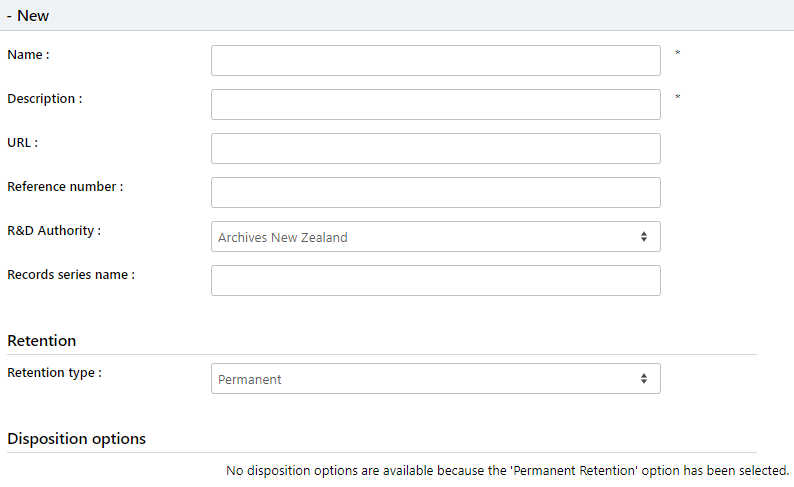
The below screen capture identifies the fields required and depending on the retention type will govern which retention trigger and disposition options will need to be included.
Creating the load file
- A tab delimited text or csv file is used for the R&D Load Utility program to create the entries into the relevant SQL Database tables.
The spreadsheet consists of the following columns:
- Name
- Description
- URL
- Reference Number
- R&D Authority
- Records Series Name
- Retention Type
- Retention Trigger
- Year
- Month
- Day
- Disposition Type
- Disposition Trigger
- Year
- Month
- Day
- Transfer Agency
- Move to Folder
For the load file to be successful, the following constraints need to be followed:
Name
- 128 Characters is the maximum number of characters stored.
- The name can be anything you decide on.
- MAGIQ Documents used the following naming convention
{Schedule identification} {Disposal Schedule code} - {years for retention}-{Function name}-{Activity Name}-{Descriptor}
working examples are :
- GA39 01.02.01 -PERM-Commercial Activities-Joint Ventures-Significant (PERM indicates that it’s a permanent retention) or
- GA39 02.07.02 -VAR-Community Relations-Corporate Image-Production and Corporate Style (VAR indicates the records officer will need to make a decision on how many years to retain the record for, as the disposal schedule maybe specify ‘Destroy after administrative or reference use ceases’) or
- GA39 03.03.03 -10yr-Community Services-Planning-Statistical Analysis
Note
When registering documents via the office add-ins or document workbench, the name field is what is visible.
Make sure your naming conventions are meaningful to you.
Description - 255 Characters is the maximum number of characters stored.
URL - Optional field, navigates to your State Records Office online Disposal Schedule
Reference Number – Optional Field, relates to the Disposal Schedule number, ie 1.2.1
R & D Authority – which Authority does it refer to, ie State Records of NSW
Records Series Name – optional field. A name or reference given to combine like records together.
Retention Type – numeric field, enter 0 = None, 1 = Temporary or 2 = Permanent.
Specifying 1 (Temporary), requires a Retention Trigger, Year or Month or Day and a Disposition Type, Trigger, Year or Month or Day
Retention Trigger – numeric field, enter 1= Upon Creation or 2 = Upon Cut-off.
- Upon Creation – Retention will be triggered on the creation date of the document.
- Upon Cut Off – Retention will be triggered on the cut-off Date specified, this is manually done.
- Specifying either value requires a Year or Month or Day.
Year, Month, Day – numeric field, enter the relevant details for retention.
Disposition Type – numeric field, only displays if Temporary is chosen for the retention type. Enter 0 = None, 1 = Final Disposition or 2 = Transfer to Agency
Specifying either value requires a Trigger and either a Year, Month or Day.
Disposition Trigger – What trigger or action will start the disposal cycle. Enter 1 = Upon Creation, 2 = Upon Cut-off, 3 = Retention End.
Specifying either value requires a Year or Month or Day.
Year, Month, Day – numeric fields, enter the relevant details for the disposal
Transfer Agency – optional field, is the name of the agency where the folder or documents are transferred to. This field will only display if the Disposition Type is set to 2 (Transfer to Agency).
Move to Folder – optional field, the MAGIQ Documents folder path where the folders or documents will be moved to after disposition has occurred.
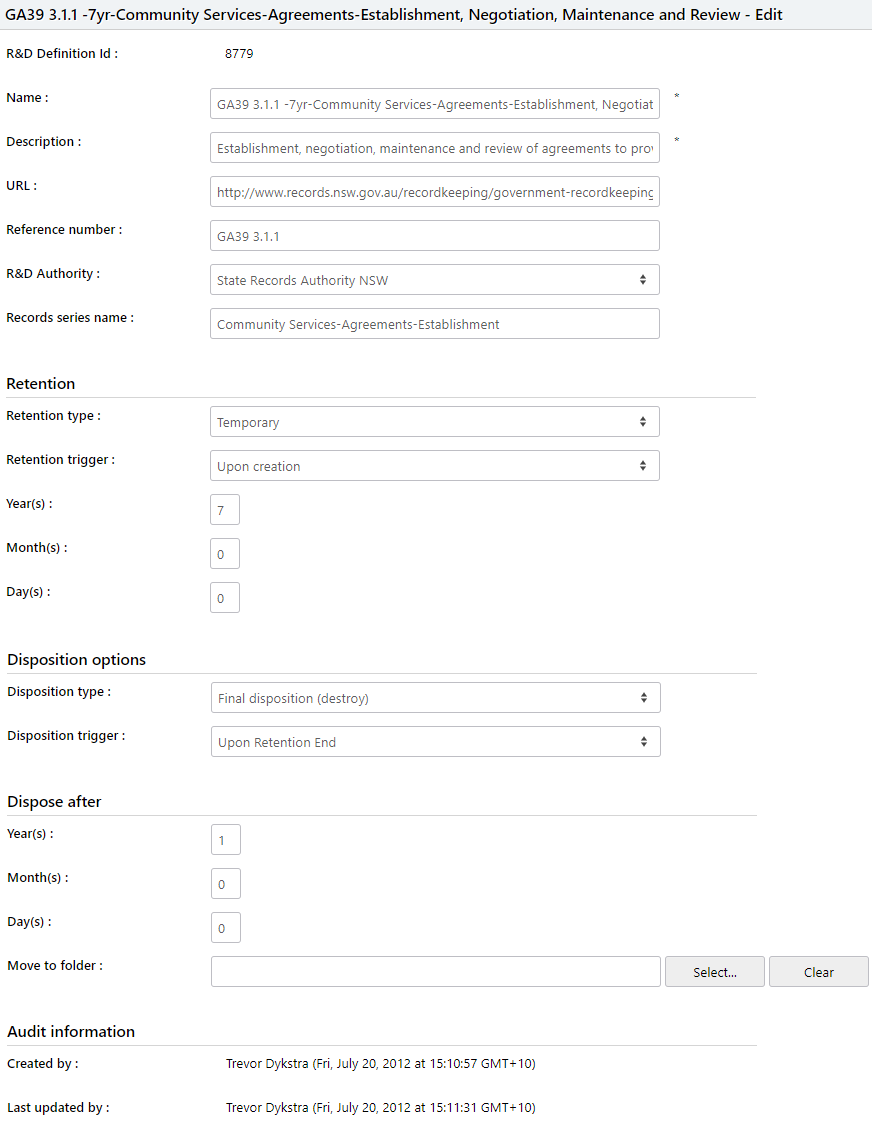
Below is an example of how MAGIQ Documents has created a disposal schedule
-
Compile data into relevant columns.
-
Save as a .csv file
To create a tab delimited text file:
- Highlight all rows and columns (including headings)
- Open editplus or notepad and paste
- Save the text file to a relevant location
- Within windows explorer navigate to the text file and change the extension to .csv
To create a csv file:
-
Save the excel spreadsheet as a csv file
-
The R&D Load program can now be used to validate the load file for accuracy, before the schedules can be loaded into MAGIQ Documents.