Word or Excel Connector / Open a Document from MAGIQ Documents for Editing
A Document or spreadsheet opened for reading is saved temporarily to the ‘Read Only’ folder ([Path.GetTempPath]\MAGIQ Documents\ReadOnly[DocumentID]).
Closing the document will remove the document from the temporary folder and delete the document id sub folder.
- Open word or Excel
-
With the connector panel open, select Open document from MAGIQ.
Leave the Optional Doc ID.
-
Click

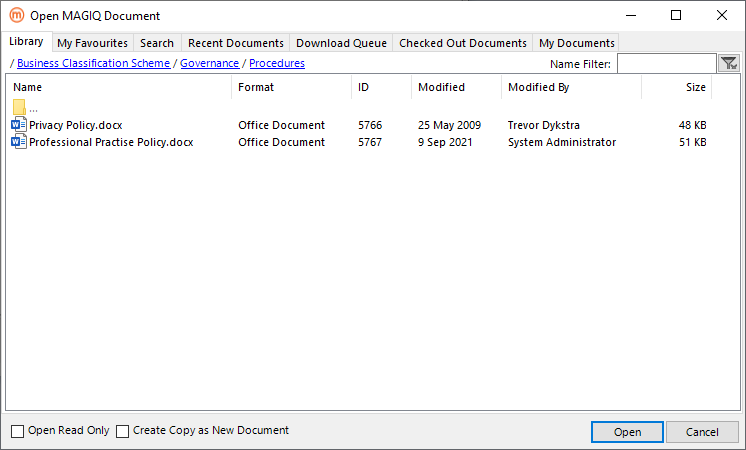
The Open MAGIQ Document window displays
-
Select a document from the library, search result, My Favourites, Recent Document, Download Queue, Checked-Out Document or My Documents tabs
The total number of documents or folders displayed depends on what is specified for the Maximum folders to display in the Application Preference Settings.
If the document or folder does not display, search via the search tab. -
Tick Open Read Only.
-
Click

-
Close the document once finished.
Closing the document deletes the document id subfolder and document from the read only folder path.