Search / Using Saved Search
"Saved Searches" are search page templates created for targeted document searching.
The "System Administrator" or designated "Search and Category Administrators" can create "Saved "Searches".
"Saved Search" screens are custom search pages created as a subset of the "Advanced Search" page. They are mainly used to create targeted search screens that allow the user to select a search screen that has a specific focus on the searching of specific types of documents.
They may include a "Custom Property" prompt by default and they may or may not include certain options that normally appear under the "Advanced Search" window.
To perform a search using a "Saved Search" screen
- Click Search tab.
- The "All Documents Search" screen will appear by default.
- In the left select the relevant saved search page.
- The search parameters that are displayed on the window depend on how the "Saved Search" screen was created.
- Specify your search criteria
- click Search to execute your search.
Example
You may wish to create a "Saved Search" page that is specifically designed to search for "Invoice" documents.
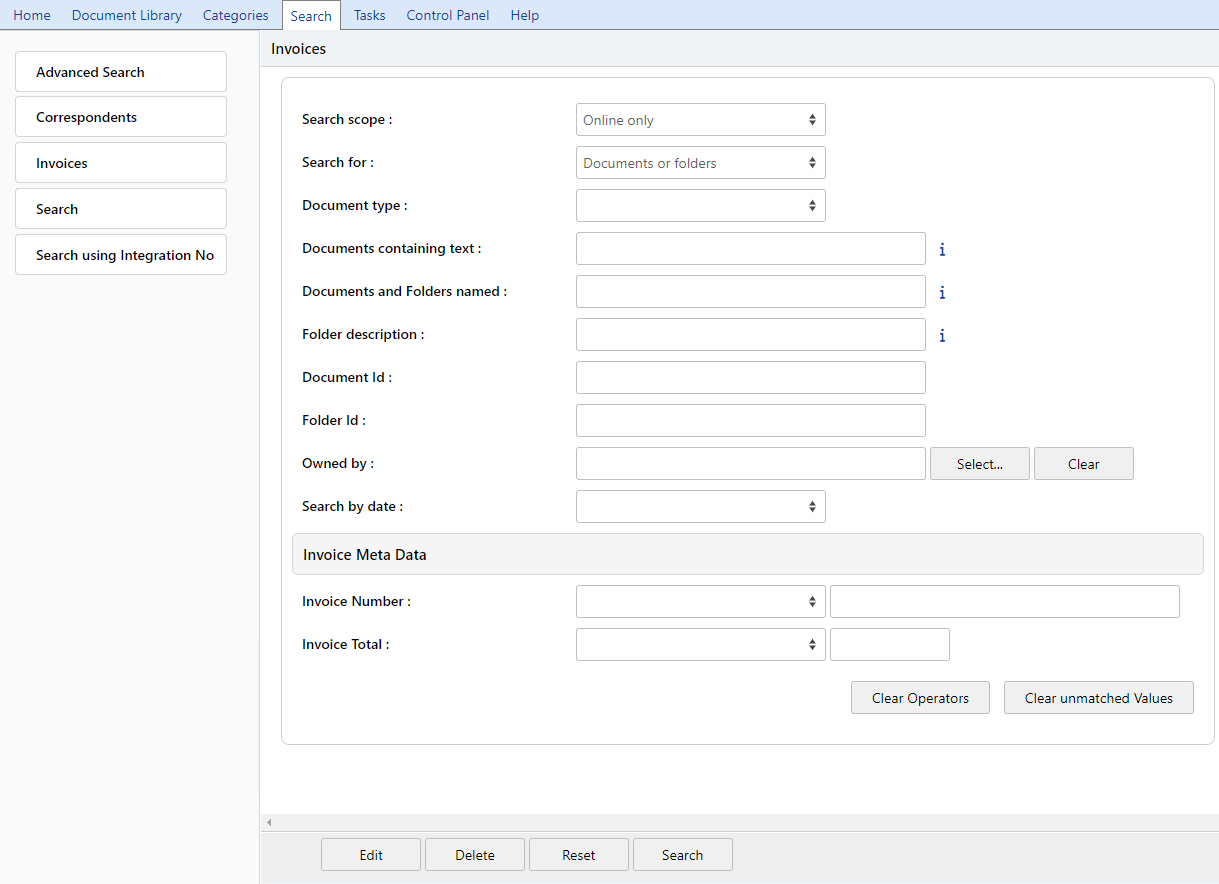
To do this, you may employ the use of a "Custom Property" called "Invoice".
This custom property may include several fields like "Invoice Amount", "Invoice Date", "Customer" etc.
Create a "Saved Search" screen that includes the custom property prompt that is set to "Invoice" and all other fields are not included in the search.
When a user selects the "Invoice Search" from the "Search pages" section of the "Advanced Search" screen, they will automatically be prompted for the "Invoice" custom property fields to perform the search.