Retention and Disposal / R and D Load Utility
Utility to bulk load/create retention and disposal schedules.
The load program is accessed via http://magiq.edrms/IXIntegration/RandDScheduleUtility.aspx, this maybe different depending on your setup. Alternatively, from the sysadmin portal, choose 'R and D Load Utility'.
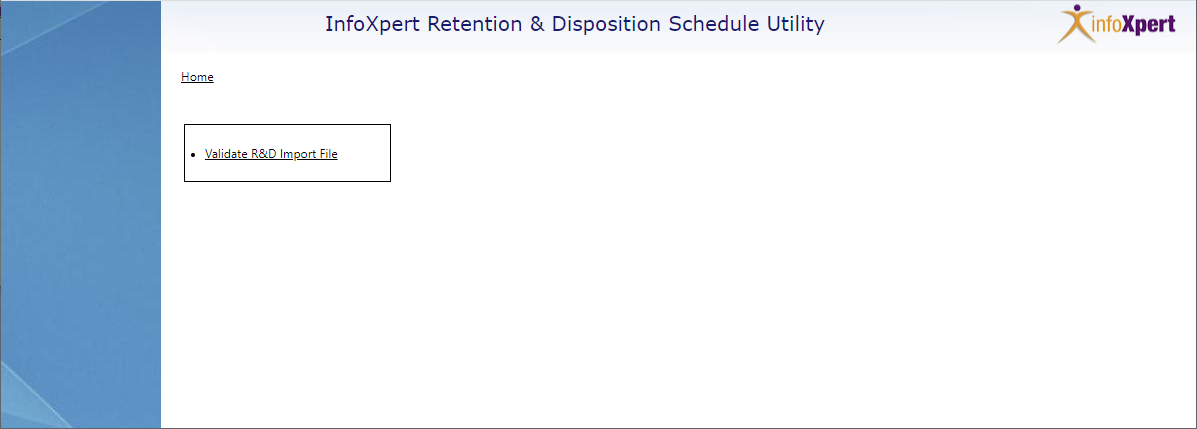
Validate R and D import file
This is file that you have compiled as per the R and D Load Template
- Click Validate R&D Import File.
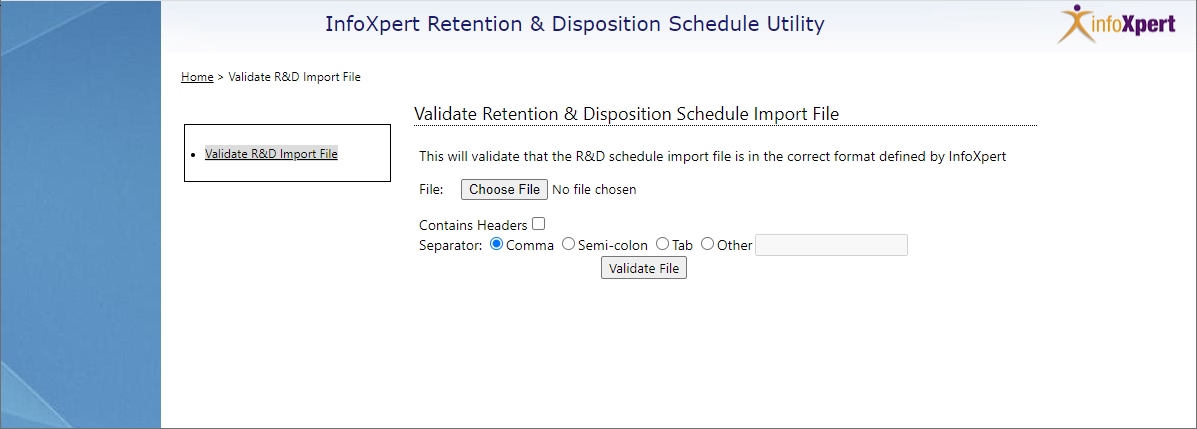
-
Click
 to navigate to the text or csv file.
 -
Tick *Contains Headers, if the column headings of Name, Description, URL, Reference Number, R&D Authority, Records Series Name, Retention Type, Retention Trigger, Year, Month, Day, Disposition Type, Disposition Trigger, Year, Month, Day, Transfer Agency, Move to Folder exist.
Leave Comma selected if you are using a csv file or check Tab if your using a tab delimited text file.
- Click

If the load file is validated correctly, you will receive the message of “The validation process completed successfully. You can now import your file”.

If the load file is not validated, you may receive the following errors:
Validation error at index "1017": When setting the retention type as Temporary at least 1 day, 1 month or 1 year is required. This indicates that line/row 1017 doesn’t have a year, month or day specified for the retention period.
Validation error at index "394": Trigger can not be None, it must be one of the following: OnCreate, OnCutOff, OnRetentionEnd This indicates that at line 394 the retention type has been set to Temporary, but no trigger has been set.
Validation error at index "10": When setting retention type as permanent, no other values are required Indicates that a numeric value has been entered in one of the other fields that isn’t required for a Permanent retention
Validation error at index "27": When setting retention type as none, no days, months or years can be set Indicates there is a value for the Retention type is set to None, and no other values are required.
Import R&D Schedule
- Click Import R & D Schedule.
Import R & D Schedule will only display once the load file has been validated successfully.
Create R and D Authority
With the disposal schedules loaded, create an 'R and D Authority', this will need to be created based on what is entered in the schedules, for example NSW State Archives.
To create an R and D Authority
- Navigate to the Control Panel.
- Select Retention and Disposition Schedules.
- Click R and D Authorities.
- Choose New R and D Authority.
- Enter the same name as you entered in your csv for the load file.
- Click OK.