Folder Properties
The folder properties contains information about the selected folder.
Changing and adding information in the folder properties, in most instances, is restricted to the system administrator and records staff.
Checking the Folder rules section will show what is and what is not permitted in the current folder.
In the "Folder Properties" window, there are multiple sections to help you manage the properties of the folder.
Sections of the Folder Properties window:
General
Classification Settings
Folder Rules
Custom properties
menus
To view or edit the properties of a folder, perform the following:
- Click on the folder to display its contents on the right-hand side of your screen.
- Then choose Tools > Folder Properties
or
- If the folder is visible on the right-hand side of your screen,
- click on the Action icon and choose Properties to expose the "Folder Properties" window.
General
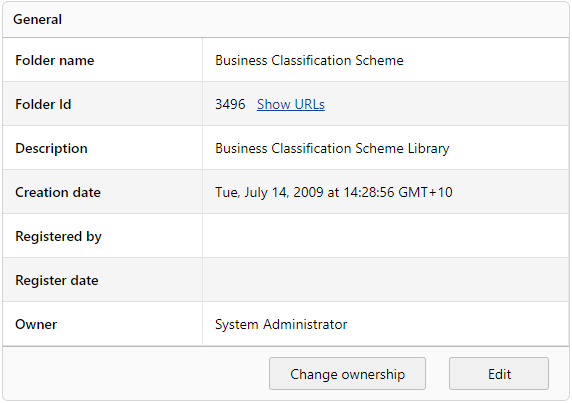
Folder Name
This is the name assigned to the folder when it was originally created
Note
The following characters are invalid and therefore cannot be used for naming folders / \ : * ? \" \< > | # % & +
Folder ID
The Folder ID is a unique identifier assigned to a Folder once created.
Description
Description of the Folder entered when the folder was created
Creation Date
The date the Folder was created.
Registered By
Who created the Folder - this cannot be changed through ownership transfer.
Register Date
The date the Folder was created.
Owner
The current owner of the folder (Typically the one who creates it) - this can be changed by clicking Change Ownership.
Classification Settings
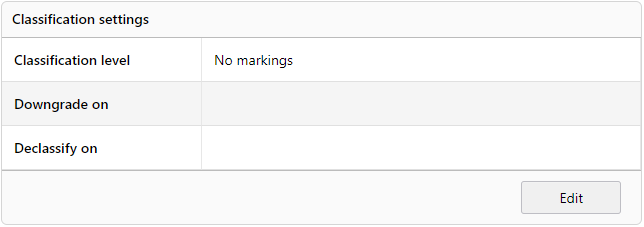
Classification level
Refers to the level of sensitivity or secrecy assigned to the Folder. Changing a documents classification will not affect the user's ability to access it.
Available Classification levels are:
- No markings.
- Declassified.
- Confidential.
- Secret and
- Top Secret.
For more on this topic refer to classifying documents.
Downgrade on
This field is not in use please disregard.
Declassify on
This field is not in use please disregard.
Folder Rules
Displays what is and what is not permitted in the selected folder.
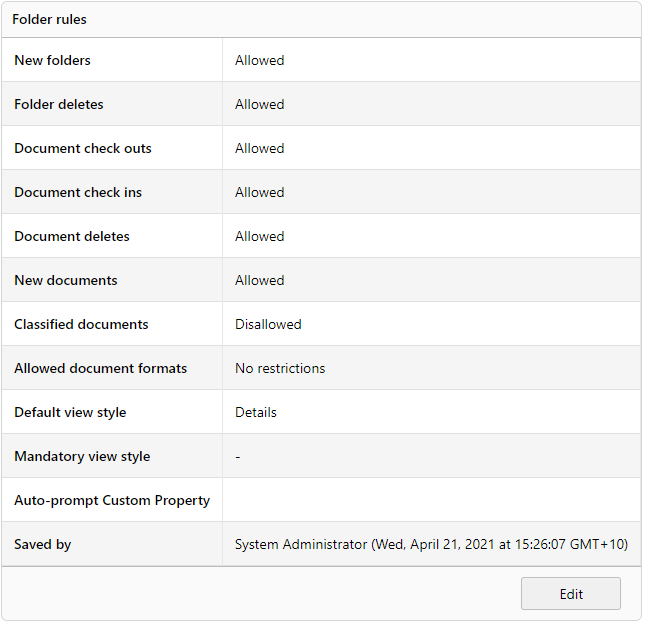
New Folders
Allows/disallows creation of new folders.
Folder deletes
Allows/disallows folders to be deleted.
Document check outs
Allows/disallows documents to be checked out for editing. Works in conjunction with WebDAV.
Document check ins
Allows/disallows documents to be checked in after being checked out. Works in conjunction with WebDAV.
Document deletes
Allows/disallows documents to be deleted.
New documents
Allows/disallows documents to be uploaded or registered.
Classified document
Allows/disallows classified documents to be uploaded or registered.
For more information on this topic refer to classifying documents.
Allowed document formats
What document formats can be registered into the folder i.e. .doc, .pdf, .jpg etc.
Default view style
Allows you to set a default view style to the folder. This view style will be applied to the folder until a user sets a different (personal) view style.
Mandatory view style
Allows you to set a mandatory view style to the folder. When a mandatory view style is set, users cannot switch view styles.
Auto prompt custom property
Allows you to set a custom property that is automatically prompted when a new document is created in the folder when using the Upload function.
Refer to Upload Documents for further information.
Saved by
The User who has made changes to this section and when those changes were made.
For more on this topic refer to folder rules.
Retention and Disposal
This is used by Records and not required by End users.
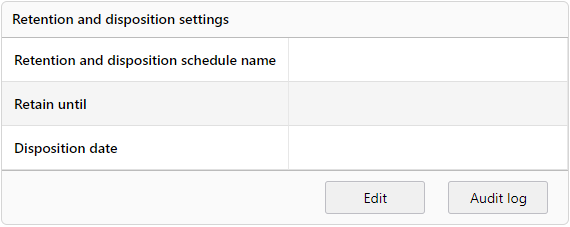
Retention and Disposition schedule
Name of the schedule applied to the folder.
Retain until
Triggered by what is specified in the schedule, ie Upon cut-off, Upon Creation.
Disposition date
Triggered by what is specified in the schedule, ie creation date, cut-off date or retention end.
R & D status
Current R & D Status. Records Manager can freeze a folder if appeals are being heard
Disposition Status
Disposition Type
Based on the retention schedule chosen, the disposition type will display, for example Final Disposition (destroy)
Cut off Settings
Works in conjunction with Retention and Dispoal.
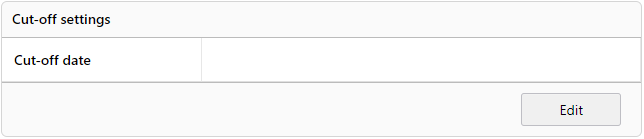
The date specified triggers the disposition date, depending on how your disposal schedule is setup.
Custom Properties
Displays the existing custom properties that have been applied to this Folder. This section also allows you to apply new custom property values to the selected Folder
Note
Custom Properties will vary depending on organisational requirements; additional custom properties can be defined by the system administrator.
For more information on this topic, refer to custom properties
To Include Custom Properties after a folder has been created
- Locate the folder you wish to assign custom properties to.
- Either select Tools > Folder properties or Click the Properties icon in the Action menu to the right of the folder name
- Scroll to the bottom of the screen, from the Custom Properties drop down list choose the relevant property.
- Add the required information.
- Click OK