Auto Reply / Generate Auto Reply Letters
An auto reply letter can be generated either from the in-tray, document navigator, document library or from EasyForms.
To generate from the document library
- Select the document that you wish to respond to, by checking the box next to the document name.
- Click Link To menu option.
-
Select Auto Reply Letter.
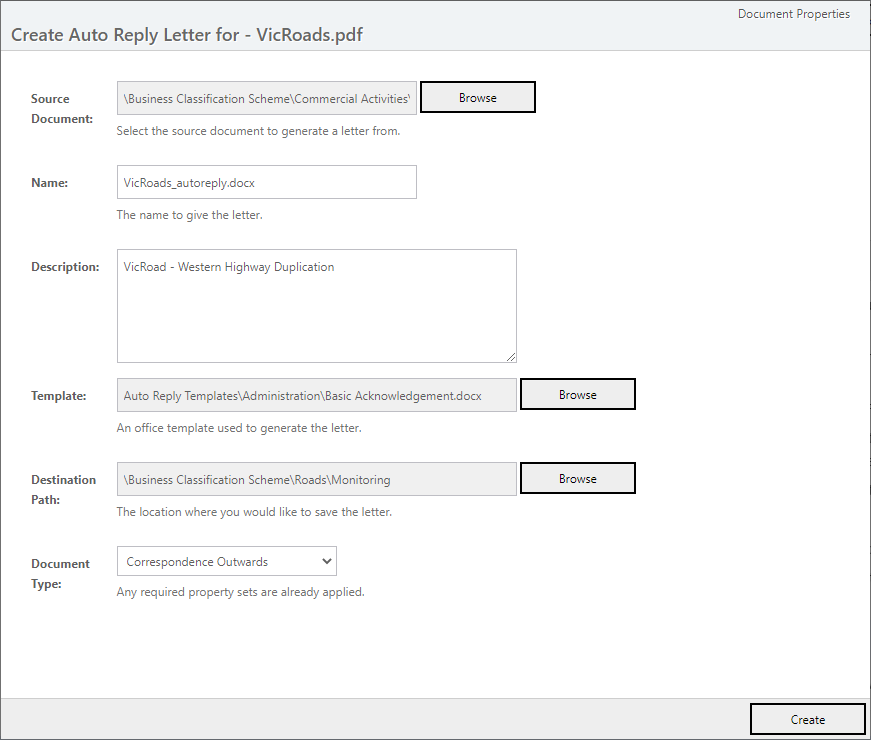
Name Document Name can be called anything, however, by default it is named with the document selected from MAGIQ Documents with _autoreply added to the end. ie photo137_autoreply.doc.
Description Description comes through automatically based on document selected. This can be changed at the user’s discretion. If left blank the template name will be used as a default description.
**Template Path ** Click Browse, to select the relevant template. This is configured through the Foundation Manager.
Destination Path Path where document will be saved. The path specified is based on where the original document resides.
This can be changed at the user's discretion. For example changing the library location to the user workspace would allow any changes to be made.Document Type A different Document Type can be selected ie Internal. By default we can set it to Outwards Correspondence.
If a custom property set is required for the document type, this will be displayed.
Next Button Will only display if custom property set information is required for the selected document type. For example, correspondent information.
-
Click Create button to generate the document. You will then be presented with
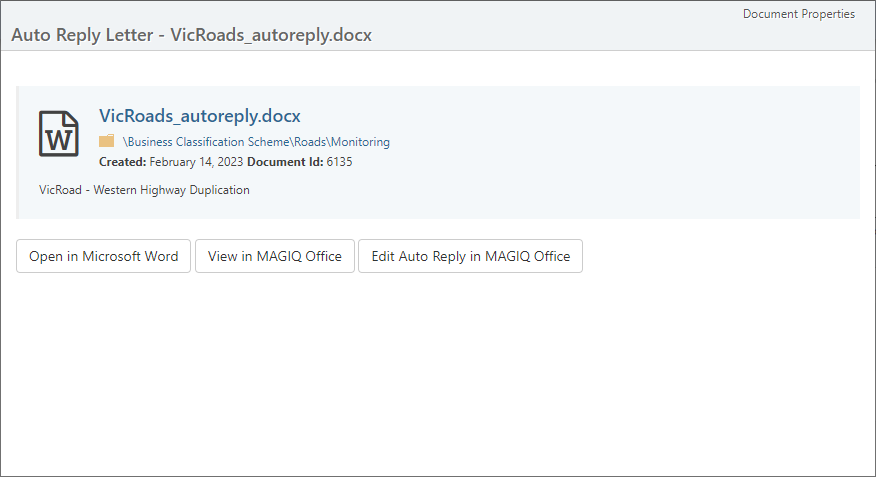
Open in Microsoft Word Edit the document using Microsoft Word.
View in MAGIQ Office View the letter in MAGIQ Office.
Edit Auto Reply in MAGIQ Office Opens the document in MAGIQ Office for editing.
Note
On Create the document will automatically be saved into MAGIQ Documents and associated with the document originally selected.
- Click X in the browser tab to close.
Warning Messages
A Document with this name already exists If an auto reply letter has already has been generated, you may receive a message of "A document with this name already exists".
Solution: Change the name so it is unique.