Personal Dashboard, User Profiles, Editing User Profiles - My Profile
The user profile screen contains information about the logged in user.
MAGIQ Documents users can access this screen from their "Personal Dashboard" screen. Authorized users can access this screen to view the user profile for other users. This can be done through User Management in the MAGIQ Documents Control Panel.
The User Profile screen is made up of 4 sections:
User profile screen overview
General
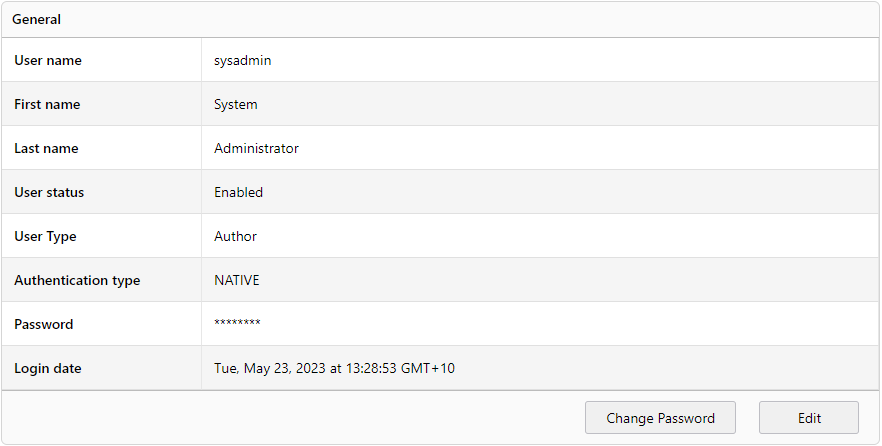
Note
Only the system administrtor or user manager can change these settings.
For more information on this section refer to user creation
Settings and Preferences
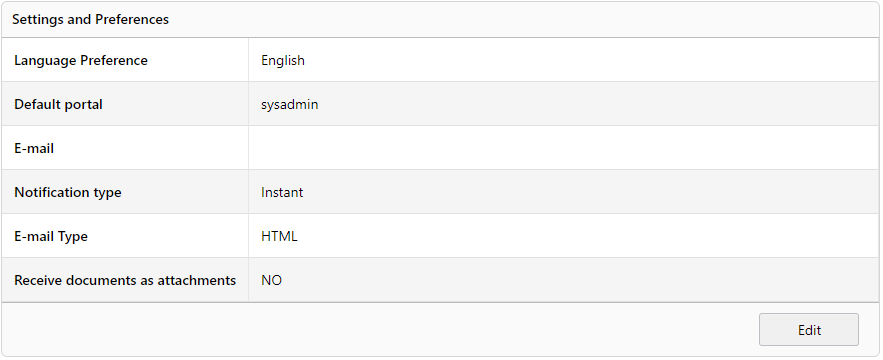
Language Preference
This defines your language setting. All MAGIQ Documents messages including screen labels will be presented in the selected language.
Default Portal
This setting takes effect as soon as you log in from the system default portal page. You will be routed to the selected portal after you log in. refer to portals
Email
This setting defines your email address. This email address will be used by MAGIQ Documents to send out email notifications.
Notification Type
Choose between:
- None - User will not receive email notifications from MAGIQ Documents.
- Instant - Email notifications will be sent to you immediately when a notification events occur.
- Daily Report - MAGIQ Documents will generate a single report daily, this will be sent to you at 12.01am.
Email Type
Choose between:
- HTML - Generates a HTML formatted email notifications
- TEXT - Generates a TEXT formatted email notifications.
Receive documents as attachments
When selected, MAGIQ Documents will attach documents to notifications where it applicable, otherwise, the notifications will contain a link to the document.
Task Redirection to Other user
Note
This only applies to future task assignments only and not any existing tasks.
The user you choose to redirect your tasks during this period will be assigned all the tasks that may be assigned to you during this period.
The start date of the redirection cannot be in the past. So the start date of the redirection has to be either the day you set this value or some future date.
Tasks that have already been assigned to you cannot be redirected using this method. This method only works for future tasks.
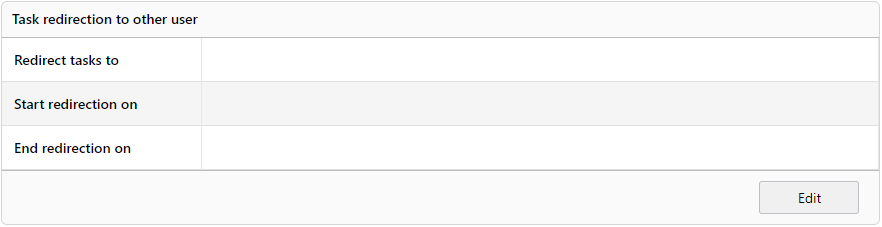
Redirect Task To
Select who you want workflows / tasks redirected to - only one user may be selected
Start From
Displays the date when redirection starts
End On
Displays the date when redirection is to end
Task Redirection from other users
Displays redirections that you will receive from other users.
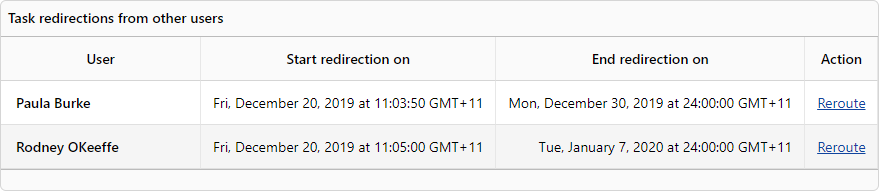
You may go on leave during the times set, and therefore you will need to reroute them elsewhere.
To ReRoute Tasks:
- Click Re Route next to the user that you wish to reroute the tasks to.
- Update the information.
- Click Update.
Menu Options
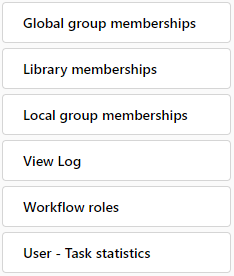
Global Group Memberships
Displays a list of "Global Groups" to which the user belongs.
Library Memberships
Displays a list of "Libraries" to which the user is a member.
Local Group Memberships
Displays a list of "Local groups" by library to which the user is a member.
View Log
Displays a list of documents you have viewed
Workflow Roles
Displays a list of all folders where the user has been assigned a workflow role. Use this link when you are trying to delete a user or to simply find out where the user has been given the role.
User Statistics
Displays the number of workflow roles, due tasks, overdue tasks and ISO Reviewer roles the current user has.