Workbench / Registering Documents
With documents loaded into the workbench for registration, it is now time to register them.
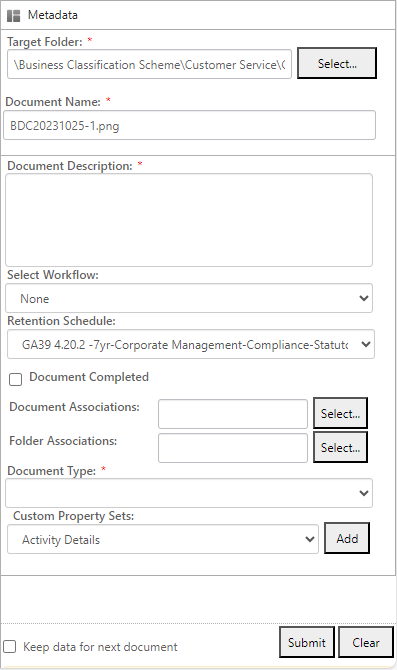
Target Folder:
Folder where documents are registered or uploaded to.
Select allows you to either browse through the Document Libraries, Search for Document Library folders or, select My Favourites to display folders that reside within your My Favourites.
If you are using the workbench configuration manager, certain fields can be marked as required such as name, description, select workflow, and document type. Mandatory fields are indicated by a red asterix
Validation of fields is done on exit instead of on submit.
Document Name
The document name will come through automatically, this can be changed
Document Description
Enter required description based on the organisations business rules.
Select Workflow
If the document is required to go to someone else in the organisation, select a workflow.
Retention Schedule
Based on the MAGIQ Documents target folder, the retention schedule will be displayed. On clicking submit the retention will be cleared if the folder doesn't have a schedule applied. If the folder does have a schedule applied and the document being registered has a different schedule, on submit, the folder retention will display.
Document Completed
Tick Document Completed if no more work is required (optional)
Associations
If the document id or the folder id is known, you may enter them here. Entering multiple ids requires a comma (,) to separate.
Select either browse through the Document Libraries, Search for Document Library folders or, select My Favourites to display folders that reside within your My Favourites.
On submitting the document, if an incorrect id is entered a warning message displays saying the document was uploaded with errors. You can click on the Document Properties button and view the associations to check which associations were successful.
Document Type
Select a Document Type relevant to the type of document you are registering
When tabbing to the document type, the first character of the document type name can be entered i.e. e for email
Custom Property Sets
Custom properties are unable to be selected unless a document type has been selected.
By default, if a document type has a custom property associated this will automatically appear. If you are using the mandatory fields manager and extra custom property sets have been added to the document type or you have extra custom property sets that need to be included every time a document is registered, these will come through automatically
If more property sets are required, select from dropdown and click Add.
Note
Any custom property set that has dropdown field will be blank.
On changing a document type, those custom property sets that are not required for the new document type will be removed. If the custom property sets are the same as the changed document, the information will remain.
Keep Data for next document
If you want the above entered data kept for the next document, tick this prior to clicking submit. Ideal for petitions / rates letters.
On registering the last document in the list, the data will remain. Ideal, if more documents are required for registering afterwards.
Submit
Registers document into MAGIQ Documents.
On clicking Submit. A message of Successful Upload appears with the document id.
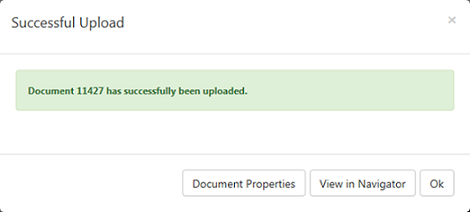
Document Properties
View the properties currently registered document.
View in Navigator
Apply other functions after save using the navigator, such as generating an auto reply letter.
Closing the Workbench
Will leave documents in the queue.
Known Issues
For more information on this topic, refer to Known Issues