Office Connector / Document Tab
If the panel does not automatically display, click Show Panel on the home ribbon.
Note
Important: before using the Outlook Connector you will need to configure the preferences. Refer to Application Preference Settings
Outlook Connector
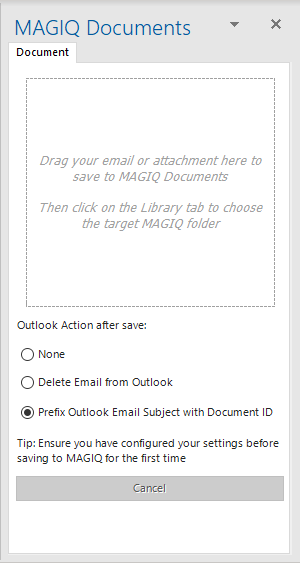
Drag your email or attachment here to save to MAGIQ Documents box - This is where you will drag your emails and or attachments for registration.
Outlook Action After Save - The default specified comes through from the application preference settings under 'Action after save'; this can be changed for specific emails.
Word or Excel Connector
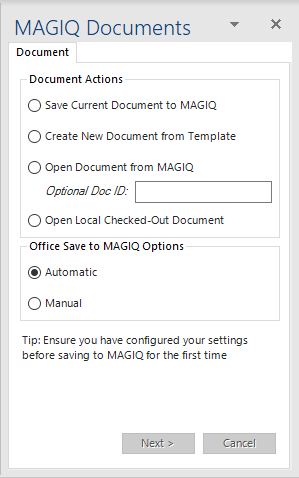
Save current Document to MAGIQ - save a document to MAGIQ Documents.
Create New Document from Template - creates a new document from a template located in MAGIQ Documents. The folder of MAGIQ Office Templates or InfoXpert Office Templates must exist within the Form Templates library in MAGIQ Documents. Templates can be regular documents.
Open Document from MAGIQ - open a document from MAGIQ Documents.
Optional Doc ID - open a document using document ID.
Leaving the Optional Doc ID blank and clicking Next displays the Open MAGIQ Document window.
Documents are opened in edit mode, with the document being checked out to the ‘Local Checked-Out Document’ folder.
Open Local Checked-Out Document - opens documents that have been saved to the ‘Local Checked-Out Document’ folder path (offline storage) for further editing. A MAGIQ Documents link is retained to determine the current versions etc.
Each document that is checked out is downloaded to a document id subfolder in ‘[LocalApplicationData]\MAGIQ Documents\Checked Out\’ for example ‘C:\Users\Trevor\AppData\Local\MAGIQ Documents\Checked Out\15800\ACME contract.docx’.
Office AutoSave to MAGIQ Options - works in conjunction with the Word/Excel Save and AutoSave options. NB: The ‘auto save’ function will continue to function as normal.
This is configured within the Application Preference Settings and can be changed per document depending on how you wish to handle document versions.
Automatic - Uploads the document as a new version into MAGIQ Documents for each save event. With the Version Save tab being updated.
Manual - Saves document to the ‘Local Checked-Out Document’ folder and the user manually uploads as a new version into MAGIQ Documents.
Next Button - After a document action is selected all controls on the Document tab are disabled except the Cancel button.
Save Current Document to MAGIQ enables the Library, MetaData and Version Save tabs to continue registration.
Create New Document from Template enables the Choose Template tab for template selection. With validation occurring to check the MAGIQ Office Templates or infoXpert Office Templates folder exists within the Form Templates document library.
Open Document from MAGIQ or a valid document id, Open MAGIQ Document window displays.
Open Local Checked-Out Document launches the Open MAGIQ Documents Local Checked-Out Document window.
Cancel Button - Cancels the current eDRMS operation including hiding other tabs that may be open.
Note
In the event the user wishes to select another document action for a new document whilst working on the current eDRMS document (e.g. open another document from eDRMS) - this can be achieved by using the File->New menu in Word/Excel to open a blank document window, since each Word/Excel document will have its own eDRMS Pane.