Searching / Creating Saved Searches
Customised or saved searches pages are page designed specifically to search for specific types of documents or custom property set information. Better yet, you can design search pages for specific users or departments within your organization.
By customising a search page, you eliminate the need to start your search from a complicated search page (advanced search page) that tries to cover all possibilities. Instead, you can define just a few prompts, so the user can enter just enough information to obtain the desired results.
As you define the search page, you can also enter default values for the search criteria which will allow the user to (in most cases) simply click "Search" to get the results.
Example:
Simply entering a search criteria for the "Look in" prompt, will narrow the search scope, helping the user achieve a much shorter list of documents to go through.
Note
The following options are only visible to Administrators and designated Search and Category Administrators.
To create a saved search
- Choose the Search tab
- Select Advanced Search from the left sidebar.
- Click New Search Page at the bottom of the screen.
MAGIQ Documents will re-display the search page with additional options.
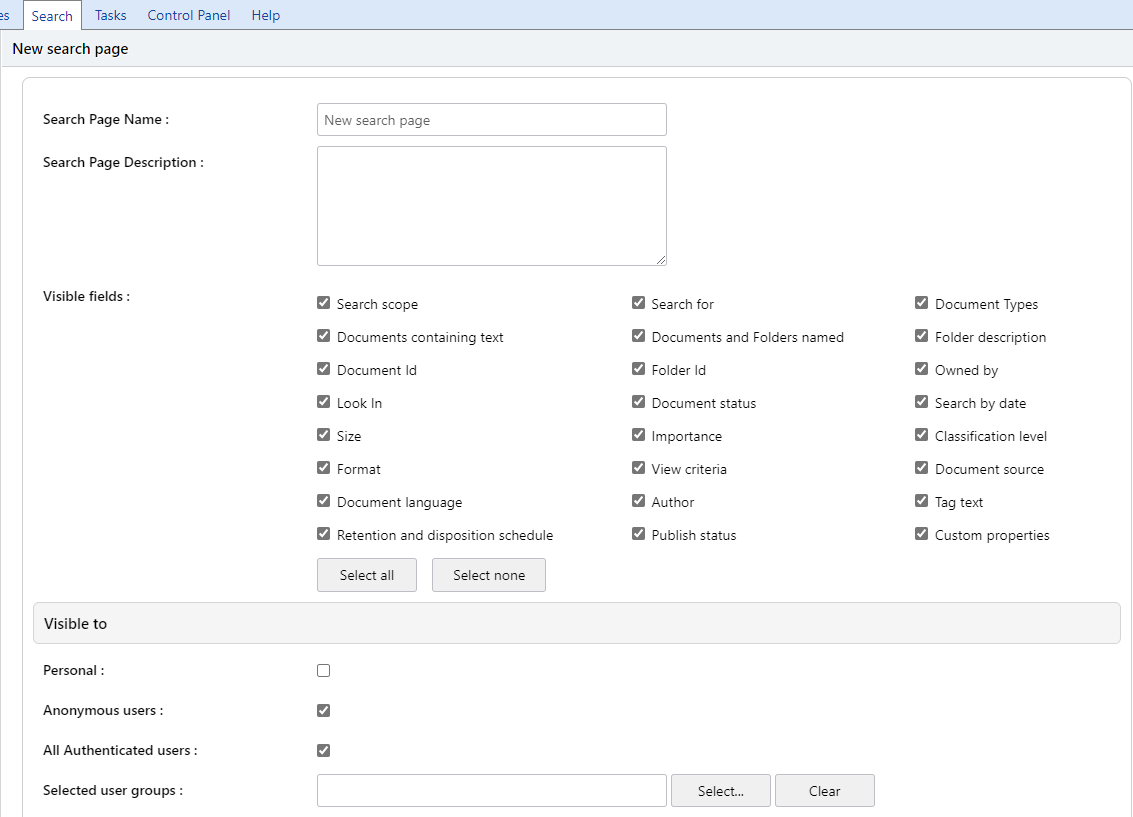
Search Page Name
Enter a name for the search page.
Search Page Description
Enter a description about the search page (optional).
Visible fields
Select from the list of search fields by clicking on the check boxes. Selected fields will be visible in the new search page.
Visible to
Who is the search page going to be visible to?
- Enter the search criteria
Note
Fields may also be pre-filled beforehand. If required, they may also be hidden from view after pre-filling to prevent Users changing options e.g. Search Scope, Look In etc.
For more information on the search fields, refer to search fields.
- Click Save.
- This saved search will now appear in the left sidebar.