The Advanced Menu
Options in this menu require the documents or folders to be selected first by ticking the box the left of the document name.
Most options on this menu may be applied to multiple documents and or folders.
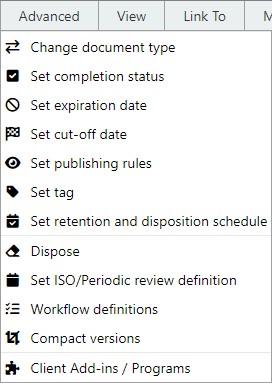
Change Document Type
Ability to bulk change the Document Type of selected documents - for example from 'Generic' to 'Internal'.
If the new Document type requires additional Custom property set information, such as 'Correspondence Inwards' - the change will fail if the Custom Property set information is not already applied to the documents.
Set Completion Status
Authors and other authorised users can set completion levels on documents so that they can no longer be edited.
This feature is important because it lets other users know the completion level of a document. It can be used as a tracking method for the progress level of an individual document or group of documents.
When set to 100% completed, the document is locked to prevent further edits.
For more on this topic refer to completing documents
Set expiration date
An expiration date can be set on a document that is due for expiry, for example, a legal document's term is to expire, or a quote is no longer valid after a certain date.
For more on this topic refer to document expiration.
Set cutoff date
End users are not required to use this function.
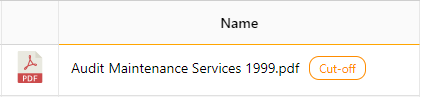
Entering a cut-off date triggers the disposition date for the document - providing the disposition trigger is set as cut-off date. Once the cut-off date has passed on a document or folder the date will display in orange.
Set publishing rules
Allows you to set the publishing rules for a document. Using this feature, you can decide which version of the document gets published to users. The version that gets published can be different than the latest version.
For more on this topic refer to publishing documents.
Set Tag
Allows users to mark the selected documents with a specific tag. The tag will be applied to the specific version of the document at time of tag application.
For more on this topic refer to tagging documents.
Set Retention and Disposition Schedule
End users are not required to use this function.
Set a retention schedule for selected documents or folders. Setting a retention schedule will protect documents and folders from accidental deletion.
For more on this topic refer to retention and diposal.
Dispose
End users are not required to use this function.
Allows authorized users to permanently delete a document once the Retention and Disposition Schedule allows this action.
Note
The document will not be placed in the system recycle bin.
Set ISO Periodic Review Definition
Using this window, you may create a scheduled process where documents are reviewed based on a set schedule by users or by a group of users in a workflow.
Allows you to schedule a task, either once off or recurring, for action in the future.
For more on this topic refer to creating periodic reivews
Workflow Definitions
Launches the workflow definitions window for the active document library.
End users are not required to use this function. This allows Record Managers or System Administrators to create document workflows.
Compact Versions
Launches the compact versions window.
Allows you to delete previous/unwanted document versions within a folder or library. Library Policies determine who can use this function.
Note
Before deleting a version, make sure you consult your Records Manager as this has implications with Retention and Disposal
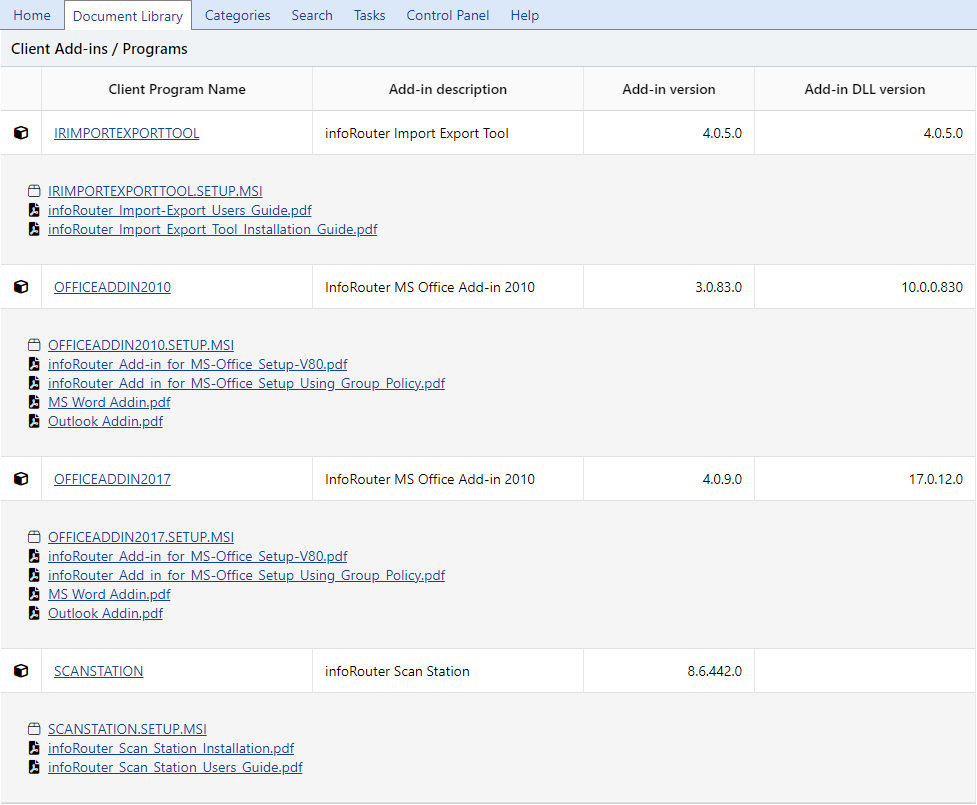
Client Add-Ins / Programs
This function may not display due to system settings and is for setup purposes only, please disregard.
This window provides a list of available client-side tools such as the Import Export Tool, the MAGIQ Documents Add-in for MS Office.
For more on this topic refer to
See also
Generate VEO(s)
This option may not display. VEO stands for VERS (Victorian Electronic Record Strategy) Encapsulated Object and relates to the Victorian legislation for sending documents to the Public Records Office of Victoria.
For more on this topic refer to