Security / Inheritance
When assigning security permissions to a folder, these security permissions automatically apply to all sub-folders and documents that currently inherit their security from this folder. You also have the option of applying this security permission to sub-folders and documents that do not currently inherit their security permissions from this folder.
When assigning security permission to documents, they will automatically inherit the security permissions of the folder it is registered in to. Users with the appropriate level of access, as defined in the Library Policies, may alter these default (inherited) permission settings.
Any number of Users and User Groups can be granted permissions as long as they are Library Members and appear on the Users and Groups list.
Permissions given to individuals supersede the permissions given to user groups.
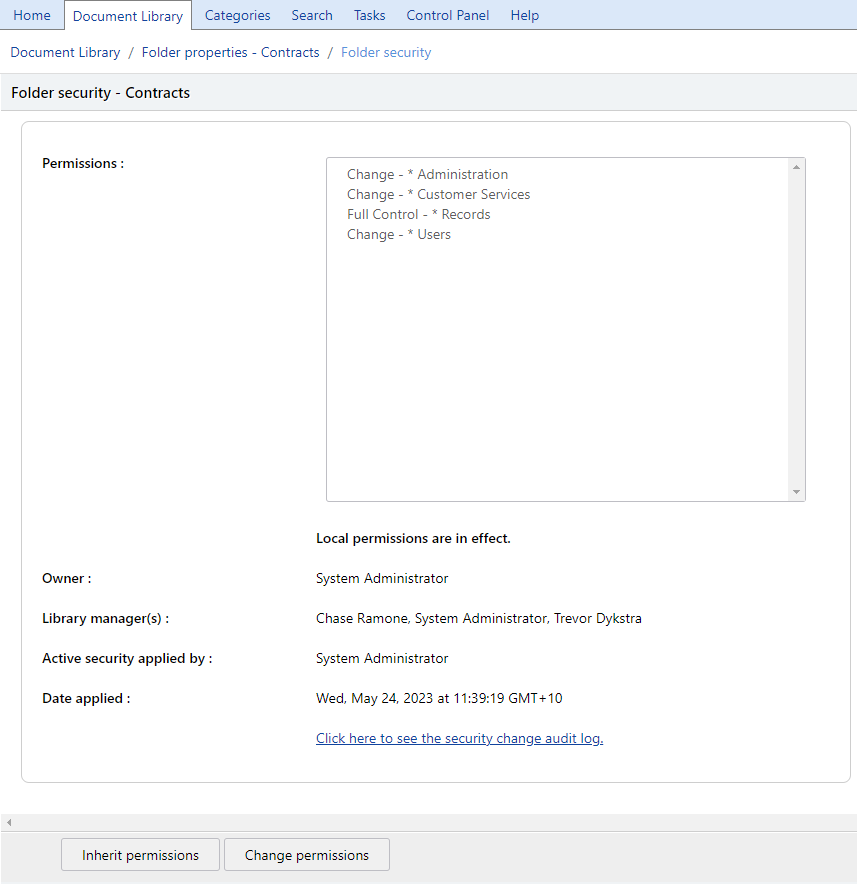
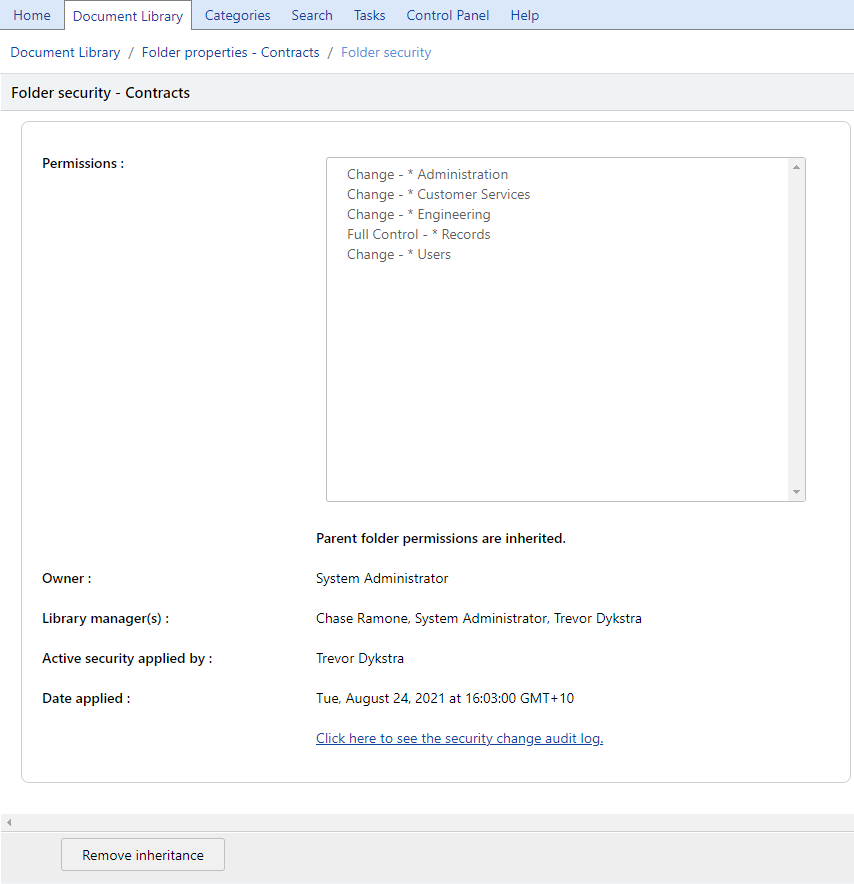
When selected, the Folder security window will display the current Permissions assigned to the Folder. It will also display information showing whether these permissions were inherited, who applied the permissions and when, and who the Owner and Library Manager(s) are. There is also a link to view the Security change history log.
If the security permissions are not inherited, and this information window will show that Local permissions are in effect, who applied this security and when, and a link to view the Security change history.
If the security permissions are inherited, this information window will show that the Parent folder permissions are inherited. It shows who applied this security and when, and a link to view the Security change history.
When choosing to Remove Inheritance or Change permissions - the Folder security screen displays the following:
User and Groups column
List of Groups and Users who are members of the Library. Multiple groups or users can be selected.
Security drop down box
Select relevant security right. (Change is the commonly used permission - Library Policies define who can perform selected actions).
Permissions column
List of Groups and or Users who currently have security permission, shows level of security currently applied.
Add button
Click to add selected Groups and or Users to the permissions area.
Remove button
Click to remove selected Groups or Users from the permissions area.
Apply these permissions to all child folders and documents that do not inherit this security
Only displayed when changing the permissions of a Folder.
This security automatically applies to all sub folders and document that currently inherit their security from this folder.
If this box is checked - Groups or users that exist in the permissions area will be filtered through to all sub-folders and documents that currently do not inherit security permissions from this folder.
If this box is left unchecked - the security permission on sub-folders and documents will remain unchanged for those sub-folders and documents that currently do not inherit this folder's existing security permissions.
Note
When moving a folder or document to a new folder, it will inherit the security from the destination folder - unless the folder/document being moved has Local permissions in effect.