Form templates / Customer Service Requests
As described in New > Document from Template, end users can create a document based on a Form template.
One example of use is for Service Requests, which can then be directed to the responsible officer for action and completion.
To create a Customer Service Request
- Navigate to an appropriate folder to start the request.
Note
A specific Document Library is generally made available for registering service requests, these will usually have folders where you can save requests based on their nature.
- Select New menu > Document from Template.
- From the list of templates select the Service Request Template.
- Click OK.
Note
The name and design of the Service Request Template that appears will vary depending on organisational requirements.
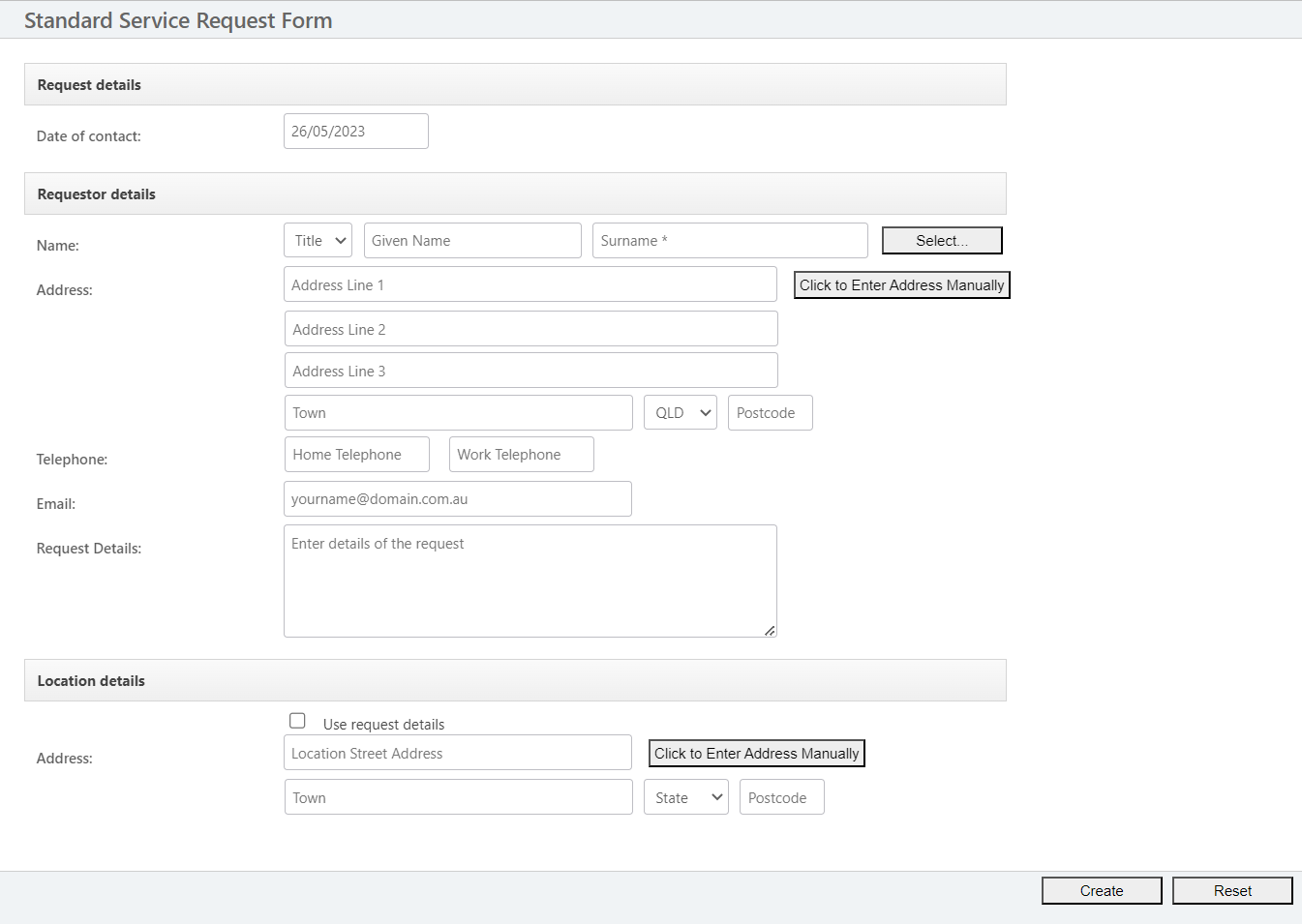
- Complete the form that appears. The * (asterisk) indicates a field is mandatory. Once the form is completed.
- Click Create the following screen will appear.
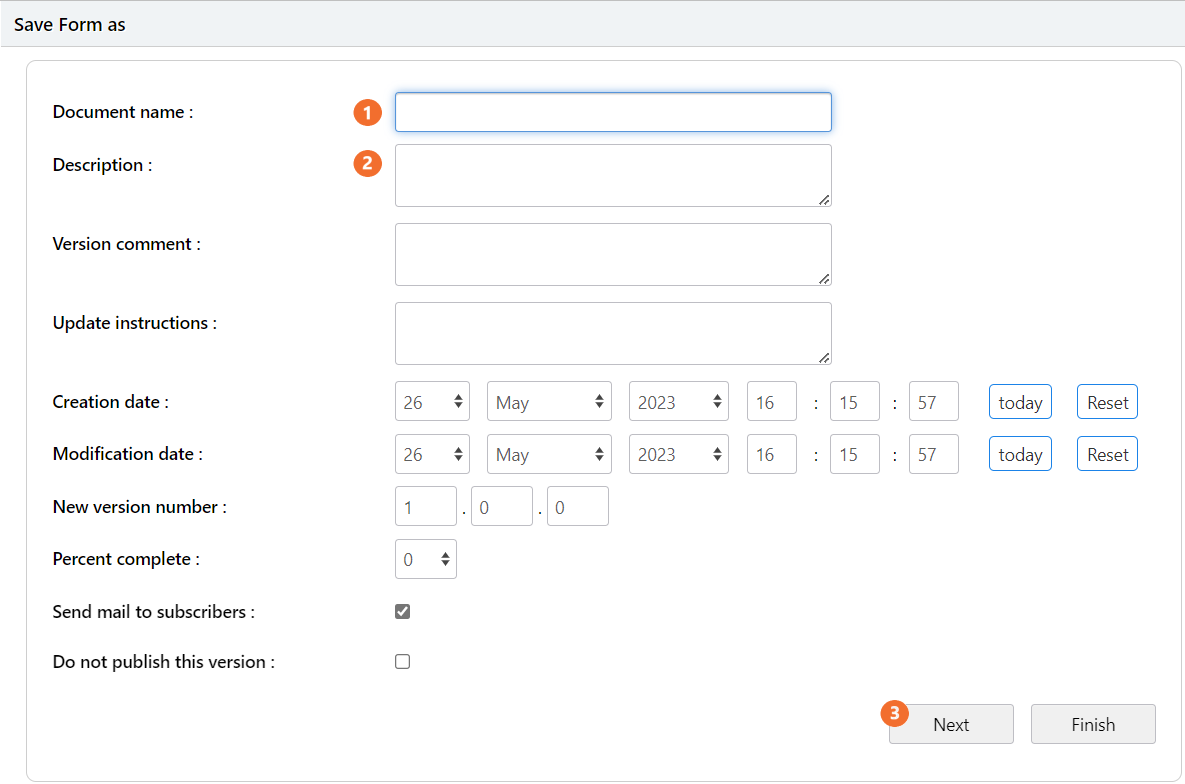
- Enter a Document Name
- Enter a Description according to your business rules. Or, copy from the request details prior to clicking submit.
-
Click Next
-
Choose a document type, for example Service Request.
-
After selecting the service request document type, a confirmation displays stating that "Required custom property set for this document type has already been applied" - this indicates that the relevant data has been entered into the form and has been saved to the required custom property set.
Custom property set information filters through to the relevant Service Request Reports. -
Click Next to set security. By default, the security is inherited from the folder.
- Click Next to send the document to a workflow.
- Click Next.
Document is now registered into MAGIQ Documents.