EasyForms / Creating a Document with Prompt for Other Actions
-
Click the category and template you wish to use.
A Please Wait window will briefly appear.
-
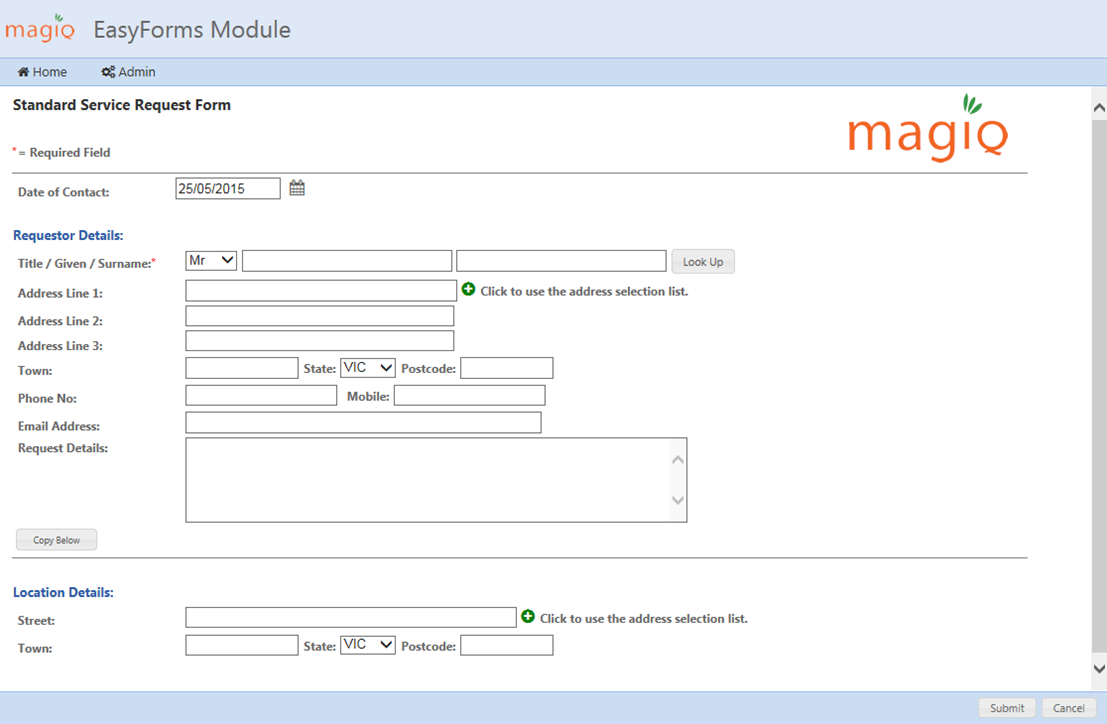
Your form will now display, complete all relevant details.
-
Click Submit.
-
Select which folder (by Double Clicking) the document is to be saved / registered to. This will only display if 'Save to Subfolder' is ticked in template creation.
-
Click Select.
-
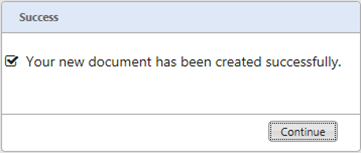
On successful registration a confirmation box will appear.
-
Click Continue.
-
Prompt for Other Actions will display.
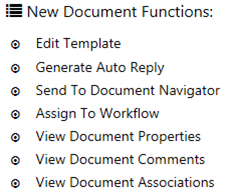
You are now able to do any of the functions listed to the saved document.
- Click Home.
This will return you to the EasyForms home page for creation of further documents