The Menu System / Edit Menu
Options in this menu require the documents or folders to be selected first by ticking the box the left of the document name.
Most options on this menu may be applied to multiple documents and or folders.
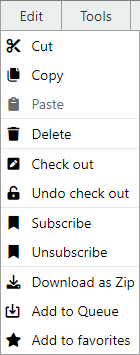
Cut
Moves the selected documents or folders to an alternative location using the paste function. Once the paste has completed, the cut document or folder will no longer be accessible from the original folder.
Copy
Copies the selected documents or folders to an alternative location using the paste function. This will create a new document or folder.
Copied documents are automatically associated to the original document with an Association Type of 'Copy of'.
Copied Folders are not associated.
For more information on this topic refer to copying and moving documents.
Paste
Items that have been cut or copied will appear in the current folder when paste is selected.
Delete
Deletes the selected documents and folders based on security rights.
Check Out
Checks out the selected documents for editing.
Saved documents can be edited by permitted MAGIQ users. If a document is incomplete it can be checked out for editing. Once you have made your changes you can check the document back in.
If any of the selected items are folders, the contents of the folder are also checked out.
For more on this topic refer to check out documents
Undo Check Out
Reverses the check-out action. The document will return to the state it was in prior to being checked out.
Subscribe
Creates a subscription record for the selected items for the current user.
Subscriptions allow users to be notified when requested actions occur on documents or Folders.
For more on this topic refer to subscribing to documents.
See also
Un-Subscribe
Subscribers can unsubscribe to folders or documents.
For more on this topic refer to unsubsribing.
Download as Zip
Download documents and folders in the form of a zip file.
To create a zip file
- Select the items you wish to download
- Click Edit > Download as Zip.
- A message will be displayed warning that some files may not be able to be included for security restrictions.
- Click on Download.
- Specify a save location and save, selected items will saved into the zip file.
Add to Queue
Places the selected documents and folders into the Download Queue for later downloading.
Used when you want to view, access or download multiple documents or folders from various locations.
Add to Favorites
Adds the selected documents and folders into the Favourites list.