Administrative Functions / Library Policies
Library Policies allow System Administrators and Library Managers to control how MAGIQ Documents behaves on a Library basis.
By configuring a series of policies, managers can set rules for whether a certain operation is allowed. Furthermore, it allows you to control who gets to perform these allowed operations.
Example:
You may wish to restrict the deletion of documents to a select few users in a given library. By default, the library manager, the system administrator and users with "full control" permissions are allowed to delete documents. By setting the permission drop down control to blank. You can prevent the deletion of documents by users with full control.
To view or change the Library Policies
- Navigate to the MAGIQ Documents Control Panel
- Click Manage your libraries, users and user groups.
- Select a library from the library list.
-
Click Library Policies located on the left sidebar.
This will launch the "Library Policies" window.
Settings for Anonymous and read-only users
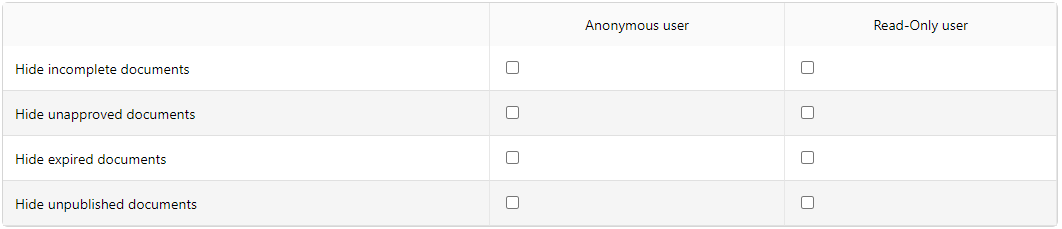
This section controls the settings that apply to Anonymous and Read-only users. When set, the documents that fit the described definition will not be visible to anonymous and read-only users.
- Hide incomplete documents
- Hide unapproved documents
- Hide expired documents
- Hide unpublished documents
Publishing requirements

Note
BEWARE!
For Libraries containing existing documents, checking the 'Document Type must be set' option will mark all documents that currently have the document type of 'Generic Document' with the publishing rule of 'unpublished' - these documents will not be able to be accessed by anyone other than the Owner, or an Author of at least one version of that document.
Turning this flag off will not change documents to the publishing rule of 'latest version' as the system does not know which documents are "true" unpublished documents.
This section controls the rules for publishing.
Documents that are registered into the library must have a document type selected, other than 'Generic Document'.
For more information on this topic refer to Publishing.
If any of the above Policies are selected, and the document meets the policy, the document will not display. Or, if more than one policy is selected, and the document meets any one of the selected policies, the document will not display.
Note
A read-only user is defined through the User Properties. An example of a read only user could be an auditor.
For more information on how to make a User a Read Only User, refer to Manage Users
General

This section controls whether or not documents can be dragged and dropped into a folder.
Note
Dragging and dropping document into a folder will not apply any metadata. Ticking this box will hide the functionality from the front end.
User Based Policies
Configuring a series of policies for Library Managers, document/folder owners and other users, define if an action is allowed.
For more information on this topic refer to library policy definitions
General Library Policy options are as follows:
Documents
- Create Documents
- Check out Documents
- Check in Documents
- Delete Documents
- Delete document Versions
- Force Check-In Documents
- Change Document Properties
- Add Comments to Documents
- Delete Document Comments
- Read Documents
- Access to document versions
- Compact versions
Folders
Security
- Read Security List
- Change Security
- Change Ownership
- Read Document Comments
- Read Subscriber List
- Add / Change Meta Data
- Delete Meta Data
- Set Document Type
- Change Document Type
- Change Retention Period
- Change Classification
- Change Document Completion Status
Tasks and Workflows
Logs and Reports
- View Document Workflow Logs
- Read Document View Log
- Read Document SOX Logs
- Read Document ISO/Periodic Review Logs
- Read Document Classification Logs
- Delete Classification Logs
Miscellaneous
Notice that certain policies have a check box to indicate "Audit Logging". When checked, MAGIQ Documents will begin to log the selected event. An audit log of the selected events may be displayed by clicking on the "Logs & Reports" link in the document properties window.
The same link located in the "Folder Properties" window allows you to display the folder level audit logs.
The logs located in the control panel display the logs for the entire system.