Word or Excel Connector / Open a Document from MAGIQ Documents for Editing
Documents are opened in edit mode, with the document being checked out to the ‘Local Checked-Out Document’ folder ([LocalApplicationData]\MAGIQ Documents\Checked Out[DocumentID]).
- Open word or Excel
-
With the connector panel open, select Open document from MAGIQ.
Entering a document ID and clicking Next will open the document.
Leaving the Optional Doc ID blank and clicking Next displays the Open MAGIQ Document window.
-
Click

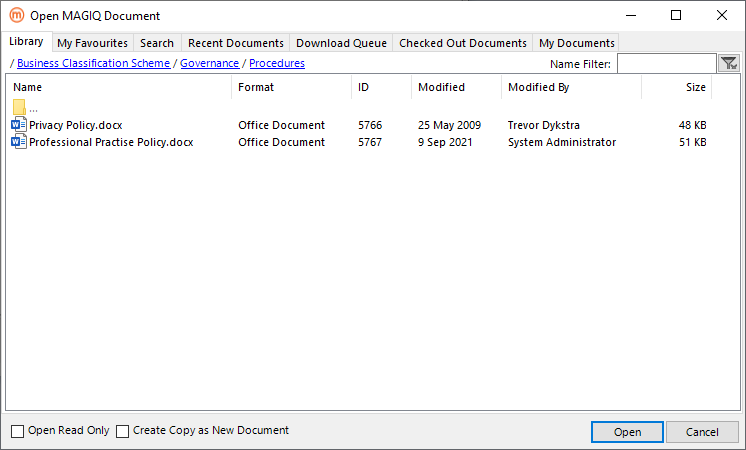
The Open MAGIQ Document window displays
-
Select a document from the library, search result, My Favourites, Recent Document, Download Queue, Checked-Out Document or My Documents tabs.
The total number of documents or folders displayed depends on what is specified for the Maximum folders to display in the Application Preference Settings. If the document or folder does not display, search via the search tab.
-
Click

-
The Document or spread sheet opens for editing and is checked out to the ‘Local Checked-Out Document’ folder.
The MAGIQ Documents panel displays the Library and Meta Data tabs with fields disabled.
-
Document tab - Choose Automatic or manual for the 'Office Save to MAGIQ' options to specify how you want versions updated in MAGIQ Documents.
-
Enter the relevant information on the Version Save tab.
-
Click
 works in conjunction with 'Office Save to MAGIQ' options.
 When the document is saved successfully with 'Keep Document Open' the 'Library' and 'Meta Data' tabs can no longer be modified.
-
Uploading the completed document into MAGIQ Documents requires 'Closed Document and Check-In' selected from the 'Version Save' tab.