Portals / How to Create Portals
When a user logs on to MAGIQ Documents the first screen they will see is the portal that has been assigned to them.
Portals allow users and administrators to expose important documents to customers, employees and partners over the web or the local intranet.
Note
Only Portal Administrators access this function.
To create a new portal
- Navigate to the Control Panel
- Choose Portals.
- Click New in the left menu.
-
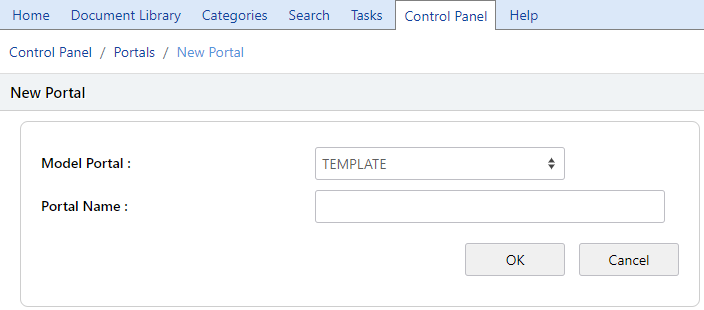
Select a "Template" portal from the "Model Portal" drop down.
The default template that is used when creating a new portal is called "Template". You may choose any of the available portals as your starting point by selecting it as your "Model Portal".
-
Enter a "Name" for the new portal.
-
Click Ok to create the new portal.
-
Notice that the new portal will be displayed in the home tab.
- The new portal will be in design mode so you can start editing the portal immediately.
- When you are done making your edits, click Release changes located in the bottom blue bar.
To assign portals to users
Refer to the users profile